Features
Everything NotifyTV puts on your TV
Calls, messages and alerts from your Android phone, as small popups on your Android TV or Google TV, with privacy controls and room for the whole family. Every feature is free; the apps are supported by ads.
See who’s calling, without pausing
- Regular SIM calls and calls from apps such as WhatsApp show the caller’s name on the TV.
- Choose Decline or Dismiss with the remote. Decline ends regular phone calls, and only while the call is still ringing on the phone that received it.
- Answer on your phone and the TV popup closes by itself, as it does when the caller hangs up.
- Calls come through even if you didn’t pick the calling app, and even in calls-only mode or during a pause.
Phone
Alex
Incoming call
◀ ▶ to choose • OK to confirm • Back to close
You pick the apps
- Common messaging apps such as WhatsApp, Messages and Gmail are switched on when you first open the app. Turn any of them off, or add others, in Select Apps.
- Select all or deselect all in one tap; the apps you’ve picked stay at the top of the list.
- When you install a new app, NotifyTV asks whether its notifications should go to the TV.
- Ongoing notifications such as music players, navigation and downloads aren’t sent to the TV.
Private on a shared screen
- Full message shows the app, the sender and the message. Sender only shows the app and the notification’s title (usually the sender) and hides the message text.
- Messages that look like one-time codes (OTPs and verification codes) are replaced with “OTP Received (Hidden)” before they leave your phone. This is on by default.
- Notifications go straight from your phone to your TV over your home Wi-Fi, encrypted for each session. There’s no NotifyTV account and no cloud server in between.
- Preview a privacy setting on the TV from the phone app before you rely on it.
Messages
OTP Received (Hidden)
A one-time code from Messages was blocked for your privacy.
Press Back or any D-pad key to close
One TV, every phone in the house
- Connect several phones to the same TV. Each phone connects to one TV at a time.
- Turn any phone’s notifications off on the TV without affecting the others.
- Rename phones on the TV (“Mom’s phone”) so popups are easy to tell apart.
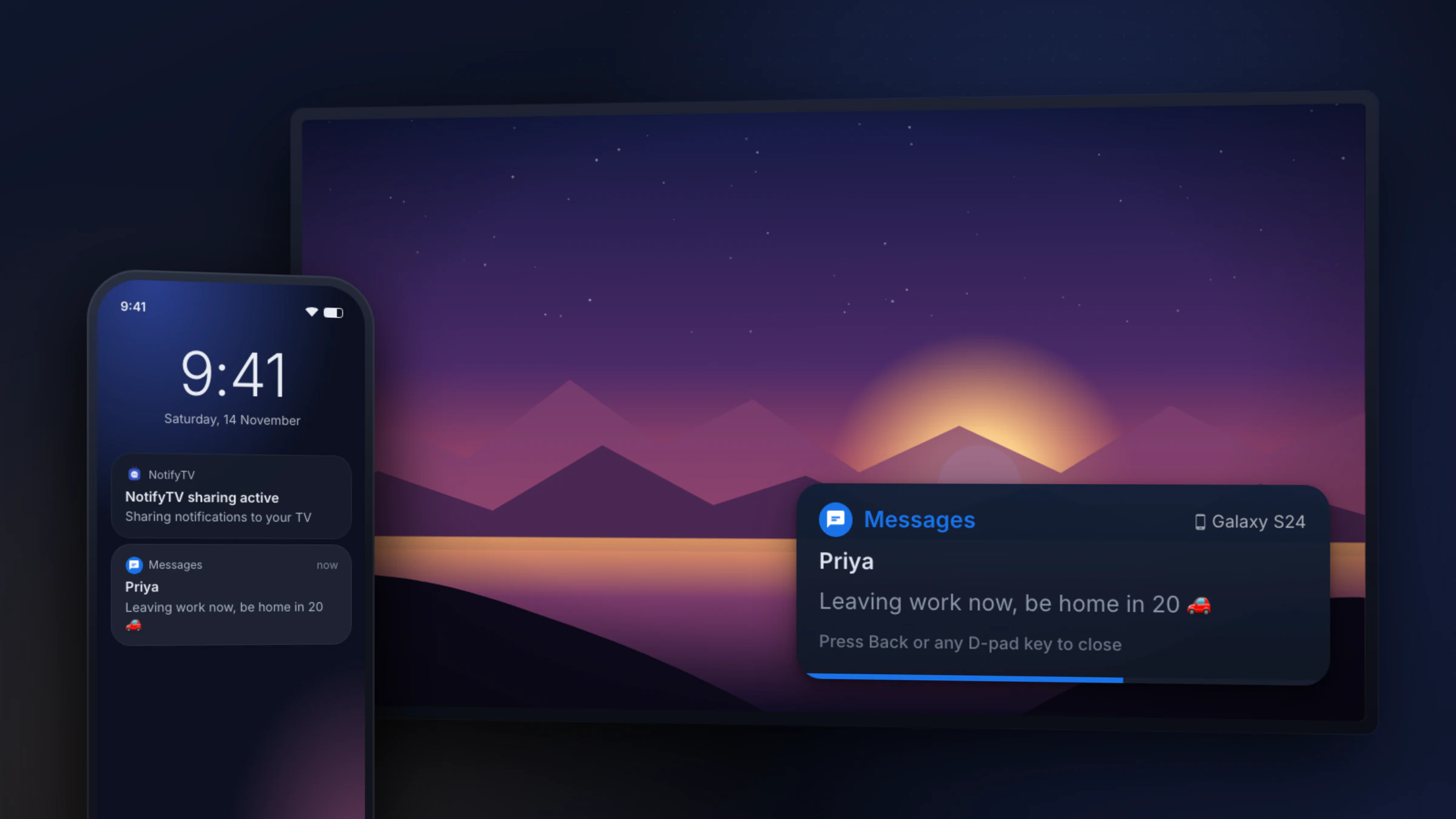
MessagesGalaxy S24
Priya
Leaving work now, be home in 20 🚗
Press Back or any D-pad key to close
Ring your phone from the TV
- Lost a phone in the sofa? Choose Ring for it in the TV’s Manage Devices; it plays a loud alarm sound for about 20 seconds so you can follow it.
- Works for any phone connected to the TV.
Quiet when you want it
- Pause notifications for 1 hour or until 7 AM. Incoming calls still come through while paused.
- Calls-only mode (Do Not Disturb) holds back everything except calls, for movie night.
- Turn sharing off from the phone, the TV or the phone’s home-screen widget.
- Missed something? The TV keeps a history grouped by app for 24 hours.
Popups made for a TV
- Place popups in any of six positions: top or bottom, left, center or right.
- Keep them on screen for 3 to 30 seconds, with an optional sound (three to choose from).
- Long messages show a short preview. Press OK to open the full message (up to 500 characters); it stays on screen until you press Back.
- Close a popup with Back or any direction key on the remote.
Mail
Sam Carter
Hey! Quick update on Saturday: we moved the dinner to 7:30 because the restaurant was fully booked at 7. I also invited Jo and Chris — they said yes. Can you bring the board game we played last time? Parking is at the back of the building, and the entrance is next to the bakery. Let me know if anything changes!
Press Back or any D-pad key to close
Battery alerts on the TV
- Get a popup when a phone’s battery drops to the level you set on the TV (5–40%, 20% by default).
- Get another when it has charged to the level you want (60–100%, 80% by default).
 NotifyTV
Low Battery 15%
Stays connected
- The phone reconnects by itself after a Wi-Fi drop, a TV restart or an app update.
- Notifications that arrive during a short drop-out (up to a minute) are delivered when it reconnects.
- When the TV is off, the phone stops retrying every few seconds to save battery, and reconnects within a few minutes of the TV coming back (straight away when you open the app).