Guide
How to see incoming calls on your TV screen
Your phone is charging in the kitchen and the film is loud. Here’s how to see who’s calling on your Android TV or Google TV, and turn the call down without getting up.
Updated
Short answer
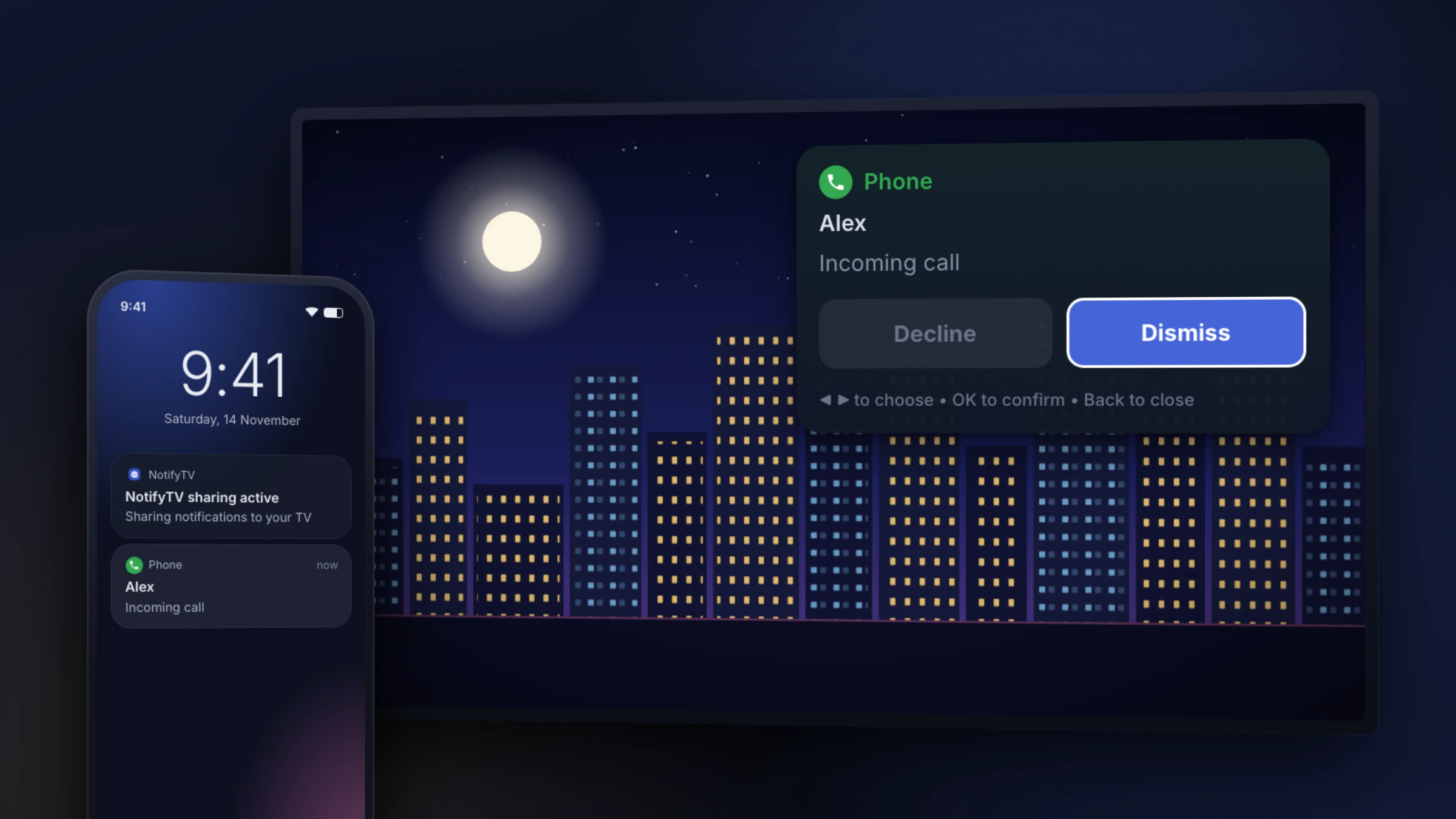
With an Android phone and a TV running Android TV or Google TV, install NotifyTV on both. Incoming calls then pop up on the TV with the caller’s name, for normal SIM calls and app calls such as WhatsApp. You can Decline a phone call with the remote, or Dismiss the popup and keep watching. You still answer on your phone.
First: which phone is ringing?
Most “caller ID on TV” results are about landlines: cable providers such as Xfinity, Spectrum or Verizon Fios can show home-phone calls on their own TV boxes. That is set up with your provider and only works with their box.
For calls to your mobile phone, the TV needs to hear from the phone itself. That’s what NotifyTV does: the phone app spots the incoming call and sends the caller’s name to the TV over your Wi-Fi.
What about Google TV’s own call notifications?
Google added call notifications to Google TV in 2024, but they only cover Google Meet calls. Regular phone calls and WhatsApp calls don’t show, which is why people use an app for this.
What you see on the TV
- Who’s calling: the name from your contacts, or the number, plus the app the call is coming from.
- Decline / Dismiss: Press ◀ or ▶ on the remote to choose Decline or Dismiss and OK to confirm. Dismiss is selected by default, so a stray OK never hangs up on anyone. Decline ends regular phone calls; for WhatsApp and other app calls, decline on the phone.
- It cleans up after itself: when you answer on the phone, or the caller gives up, the popup disappears. If nothing happens it closes after 45 seconds.
- It’s safe with several phones: Decline only reaches the phone that is ringing, and only while it is still ringing.
Set it up
- 1
Install NotifyTV on the TV and the phone
Both apps are free on Google Play. The TV needs Google TV or Android TV 8.0+; the phone needs Android 8.0 or newer.
- 2
Allow the Phone permission on your phone
The phone app asks for it during setup. It’s what lets NotifyTV see incoming calls and decline them for you.
- 3
Pair the phone with the TV
Scan the QR code on the TV, or let the phone find the TV on your Wi-Fi. Calls are forwarded straight away, even before you choose any other apps.
The full walkthrough, with fixes for common problems, is in the setup guide.
Movie night: calls only
Turn on calls only on the TV and every other notification waits, while calls still come through. Pausing NotifyTV for 1 hour or until 7 AM works the same way: calls still get through.
Helpful for people who can’t hear the phone
If you watch with headphones, or someone at home is hard of hearing, a call on the TV screen is much harder to miss than a ringtone in another room. Connect each family member’s phone to the same TV and the popup shows whose phone is ringing.
Frequently asked questions
Can I answer a call from the TV?
No. NotifyTV shows who is calling and lets you decline a phone call or dismiss the popup with the remote. To talk, pick up your phone. The TV popup closes by itself once you answer.
Does it show WhatsApp and other app calls?
Yes. Incoming calls from apps that show a standard Android incoming-call notification, such as WhatsApp, appear with the caller’s name, and so do regular SIM calls. Calls come through even if you did not pick the calling app in your app list. Decline from the TV is for regular phone calls; for app calls, answer or decline on your phone.
Will Decline hang up a call I already answered?
No. Decline only works while the call is still ringing on the phone that received it. If you have already answered, or the call came to another family member’s phone, the TV cannot end it.
Does it work with an iPhone?
No. The phone app needs an Android phone running Android 8.0 or newer.
Does my phone have to be in the same room?
No. It has to be connected to the same Wi-Fi network as the TV. That is the point: the phone can stay on the charger in another room.