Guide
WhatsApp on Google TV and Android TV: what actually works
You can’t install WhatsApp on a Google TV from the Play Store. Here’s an honest look at the workarounds, and how to see your WhatsApp messages and calls on the TV without giving up what you’re watching.
Updated
Short answer
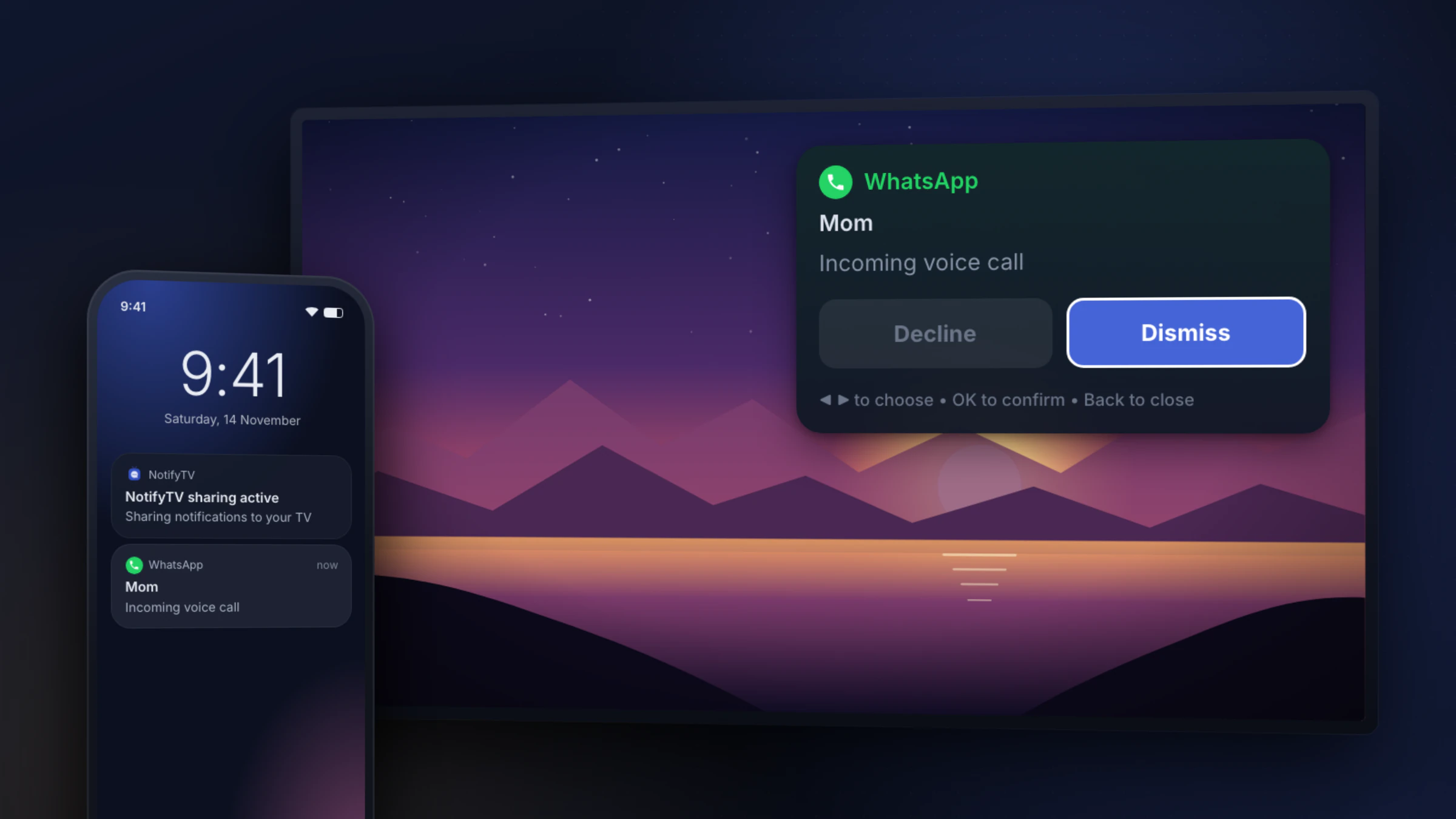
There’s no official WhatsApp app for Google TV or Android TV. If what you want is to notice WhatsApp messages and calls while you watch, forward them from your phone with NotifyTV: they appear as small popups on the TV. Replying and calling still happen on your phone.
Your options, compared
| Option | Good for | Downsides |
|---|---|---|
| WhatsApp Web in a TV browser | Read and type chats on the big screen | Typing with a remote is slow; no calls; needs a browser app; you have to keep it open instead of watching |
| Installing the phone app file (APK) | Sometimes opens | Not made for TVs or remotes, no updates from Google Play, and installing apps from unknown sites is a security risk |
| Casting or screen mirroring | Shows the real app | Replaces what you were watching and shows everything on your phone, private chats and codes included |
| NotifyTV (notifications only) | WhatsApp messages and incoming calls pop up over what you’re watching | You can’t reply or take calls on the TV; that still happens on your phone |
What WhatsApp looks like on the TV with NotifyTV
- Messages show the sender and the text. Long messages show a preview; press OK on the remote to open the full message (up to 500 characters).
- Group chats show what your phone’s notification shows, usually the group name and the sender.
- Calls show who’s calling. Dismiss the popup with the remote and answer or decline on your phone.
How to set it up
- 1
Install NotifyTV on your TV and phone
Free on Google Play. You need an Android phone; iPhones aren’t supported.
- 2
Pair them
Scan the QR code on the TV with the phone app, or let it find the TV on your Wi-Fi.
- 3
Check WhatsApp is switched on
In the phone app, open Select Apps. WhatsApp is switched on automatically if it’s installed; turn on WhatsApp Business too if you use it. Calls come through either way.
- 4
Send yourself a message
Ask someone to message you, or tap Test Notification in the phone app, and watch it appear on the TV.
Stuck? The troubleshooting section covers the usual causes.
What NotifyTV can’t do
- Reply to messages, or show your chat history.
- Take voice or video calls on the TV.
- Run on Samsung, LG, Roku or Fire TV, unless you plug in a Google TV streaming device. Check your TV.
NotifyTV isn’t made by or affiliated with WhatsApp or Meta. It forwards the notifications your phone already receives.
Frequently asked questions
Is there an official WhatsApp app for Google TV or Android TV?
No. WhatsApp does not offer an app for Google TV or Android TV, so you cannot install it from the TV’s Play Store.
Can I make WhatsApp video calls on my TV?
Not with NotifyTV. NotifyTV shows incoming WhatsApp calls so you know who is calling, but the call itself happens on your phone.
Can I reply to WhatsApp messages from the TV?
No. NotifyTV shows messages; you reply on your phone. It keeps things simple and private on a shared screen.
Does it work on Samsung or LG TVs?
Not directly, because those TVs do not run Google Play apps. It works if you plug a Google TV streaming device into the TV and watch through that device.