Setup guide
Set up NotifyTV in a few minutes
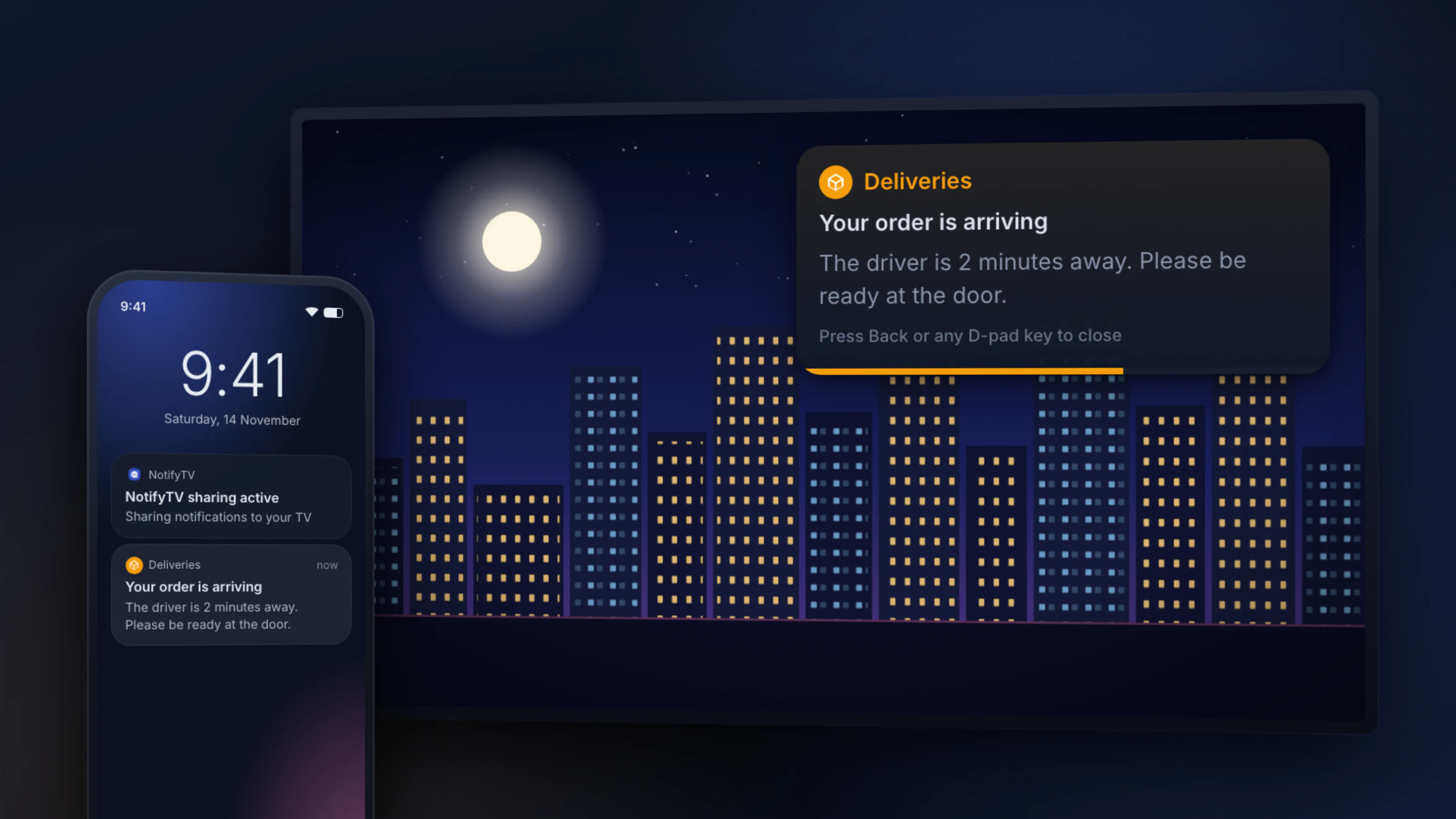
Install the app on your TV and your phone, pair them, and pick the apps you want on the big screen. If something doesn’t work, the troubleshooting section below has the fix.
Updated
What you need
- An Android phone running Android 8.0 or newer
- A TV or streaming device with Google TV, or Android TV 8.0 or newer, and the Google Play Store
- Both connected to the same home network (Wi-Fi, or Ethernet for the TV)
Not sure about your TV? Check which TVs work. NotifyTV doesn’t work with iPhones, Samsung or LG TVs, Roku, Apple TV or Fire TV.
Step by step
- 1
Install NotifyTV on your TV
On the TV, open Google Play (Apps on Google TV), search for NotifyTV and install it. You can also do this without the remote: open the TV app’s page on Google Play on your phone or computer, signed in with the same Google account as the TV, and pick your TV next to Install.
- 2
Open it and allow “Display over other apps”
NotifyTV draws popups on top of whatever you’re watching, so Android asks for permission once. Open NotifyTV on the TV and follow the quick setup; when it asks, choose Grant Permission and turn NotifyTV on in the “Display over other apps” list that opens.
The TV now shows a pairing screen with a QR code and the TV’s IP address.
- 3
Install the phone app and allow access
Install NotifyTV on your Android phone from Google Play and follow the quick setup. It asks for:
- Notification access, so it can read the notifications you choose to forward.
- Phone, so incoming calls show on the TV and you can decline them from the remote.
- Notifications, for the small “NotifyTV sharing active” notification that keeps NotifyTV running.
- 4
Pair the phone with the TV
Make sure both are on the same network, then tap Pair New Device in the phone app and pick one:
- Auto: the phone finds TVs on your Wi-Fi; tap yours.
- QR Scan: scan the code on the TV screen.
- Manual: type the IP address and port shown on the TV (the port is usually 8765).
- 5
Choose the apps to forward
Open Select Apps in the phone app. Common messaging apps such as WhatsApp, Messages and Gmail are already switched on; turn on any others you want, such as your doorbell app, and turn off the rest. Calls come through either way.
- 6
Send a test notification
Tap Test Notification on the phone’s home screen. A popup should appear on the TV within a second or two. Then set the popup position, duration and sound in the TV app’s settings.
Troubleshooting
Most problems come down to the network, a missing permission, or the phone saving battery. Find your symptom:
The phone can’t find my TV
- Check that the phone and the TV are on the same network. Guest networks and some mesh or router settings (“AP isolation” or “client isolation”) stop devices from seeing each other.
- Turn off any VPN on the phone while pairing.
- Use the QR code or type the IP address shown on the TV’s pairing screen instead of Auto.
Paired, but no popups appear on the TV
- Open NotifyTV on the TV. If it shows an “Overlay Permission Required” banner, choose Grant Permission and allow “Display over other apps”.
- On the TV, make sure receiving is on, notifications aren’t paused and calls-only mode is off.
- On the phone, check the app is switched on in Select Apps, and that the home screen shows Active.
- Send a Test Notification from the phone app to check the connection itself.
It works, then stops after a while
- Your phone may be stopping NotifyTV in the background to save battery. If the phone app shows “Keep NotifyTV running”, tap Fix; otherwise set NotifyTV’s battery usage to Unrestricted in Android settings. Samsung, Xiaomi, OnePlus and Huawei phones are the strictest; dontkillmyapp.com has steps for each brand.
- If the phone says “TV unreachable”, the TV may be off or asleep. Turn it on and tap Retry; the phone also reconnects by itself when the TV comes back.
Some notifications don’t show
- Check the app is switched on in the phone app’s Select Apps list.
- In Sender only mode the TV shows who a message is from, not the text. Messages that look like one-time codes are hidden on purpose.
- Ongoing notifications such as music players, navigation and downloads aren’t sent to the TV.
Calls don’t show on the TV
- Allow the Phone permission in the phone app (Android settings → Apps → NotifyTV → Permissions).
- Check that the phone shows Active, and that receiving is on for that phone on the TV. Calls come through even in calls-only mode and during a pause.
“Restricted setting” when allowing notification access
- Android blocks notification access for apps installed from outside an app store. Install NotifyTV from Google Play instead of an APK file.
Still stuck?
Email [email protected] with your phone model, your TV model and what you see on each screen. You can also send feedback from the phone app’s settings.