Guide
How to show only notifications on your TV, without screen mirroring
Screen mirroring sends everything on your phone to the TV, including private chats and one-time codes. If all you want is to notice messages and calls while you watch, forward just the notifications instead.
Updated
Short answer
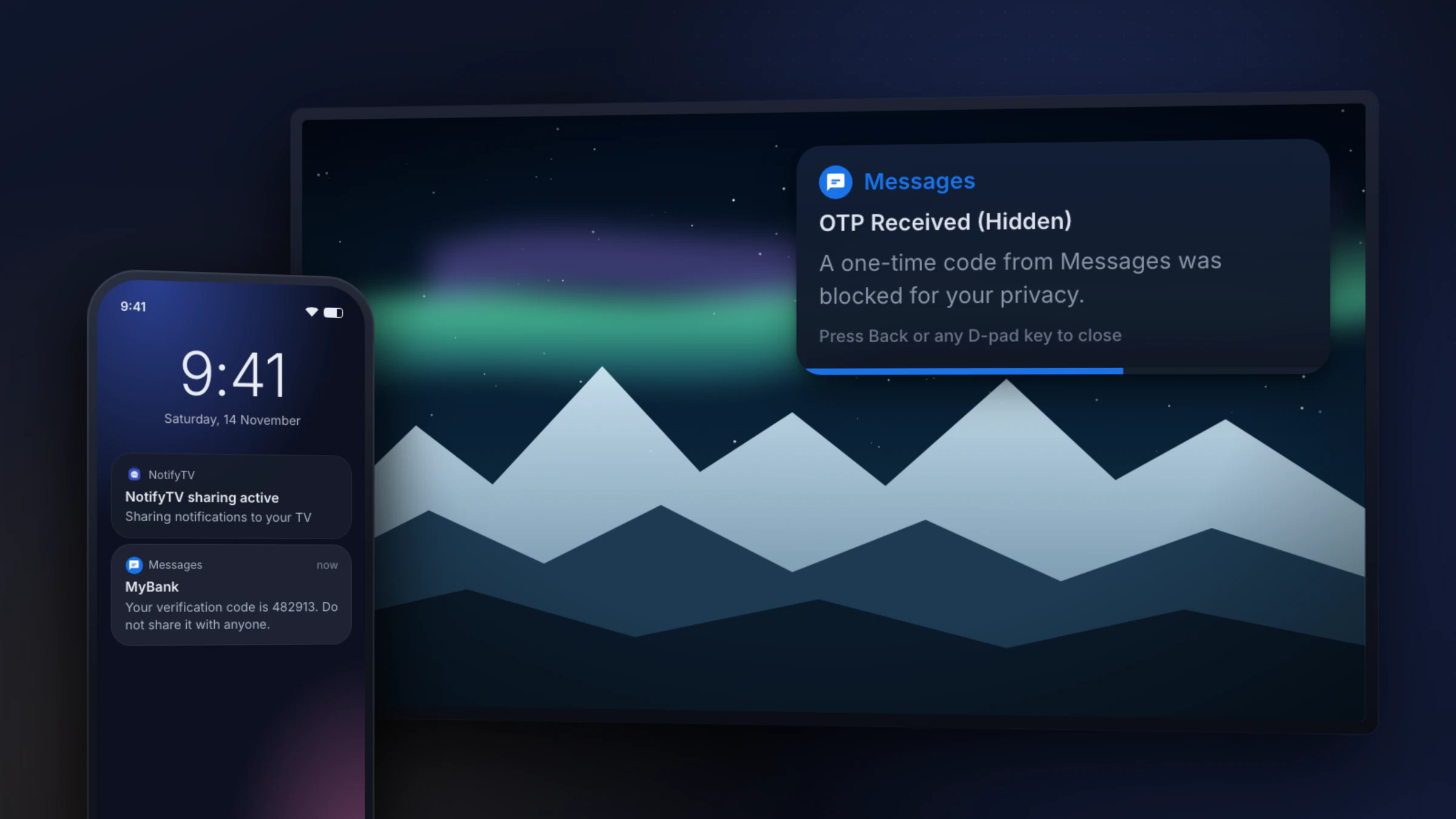
Screen mirroring can’t send notifications on their own: it always shares the whole screen. To get only your notifications on an Android TV or Google TV, use a notification-forwarding app such as NotifyTV. It sends the apps you choose as small popups, keeps your film playing, and hides one-time codes by default.
Why mirroring is the wrong tool for this
Casting and Smart View-style mirroring are great for showing photos. For notifications they’re awkward: your show disappears behind your phone’s screen, the phone has to stay awake and connected, and every notification that lands is visible to the whole room, including verification codes and messages you’d rather keep to yourself.
Mirroring vs forwarding notifications
| Screen mirroring | NotifyTV | |
|---|---|---|
| What reaches the TV | Your whole phone screen | Only notifications from apps you pick |
| What you were watching | Replaced by your phone screen | Keeps playing; the popup sits in a corner |
| Private messages and codes | Visible to everyone in the room | Sender only mode; one-time codes hidden by default |
| Phone needs to be | Awake and sharing its screen | Anywhere on the same Wi-Fi, even locked and charging |
| Several phones | One at a time | Several at once, each labelled |
| Calls | Only while you’re mirroring | Caller name, with Decline for phone calls |
What the TV shows, and what it doesn’t
- Full message: app, sender and text, for when you’re watching alone.
- Sender only: the app and the notification’s title (usually who it’s from), for when the room is full.
- One-time codes: messages that look like a code (a word such as “code” or “OTP” plus a number) are replaced by “OTP Received (Hidden)” before they leave your phone. This is on by default.
Set it up in three steps
- Install NotifyTV on your Android phone and on your Android TV or Google TV.
- Pair them by scanning the QR code on the TV.
- Pick the apps you want on the TV and choose Full message or Sender only.
The setup guide has the details and fixes for common problems.
If you still need to mirror sometimes
Before you cast your screen, turn on Do Not Disturb on your phone so notifications don’t pop up mid-presentation, and close chats you don’t want on the big screen. NotifyTV and mirroring can live side by side: use mirroring for photos, NotifyTV for everything else.
Frequently asked questions
Can I mirror only my phone’s notifications to the TV?
Not with screen mirroring, which always sends the whole screen. A notification-forwarding app such as NotifyTV sends only the notifications you choose, as small popups, while the TV keeps playing what you were watching.
How do I stop notifications showing while I screen mirror?
Turn on Do Not Disturb on your phone before you start casting or mirroring. Recent Android versions also hide sensitive notification content while you share your screen.
Are one-time passcodes safe on the TV?
NotifyTV hides messages that look like one-time codes by default. The TV shows that a code arrived, and the code itself stays on your phone.