Compatibility
Does NotifyTV work on my TV?
NotifyTV runs on TVs and streaming devices with Google TV, or Android TV 8.0 or newer, and the Google Play Store, paired with an Android phone. Pick your brand below for a quick answer.
Updated
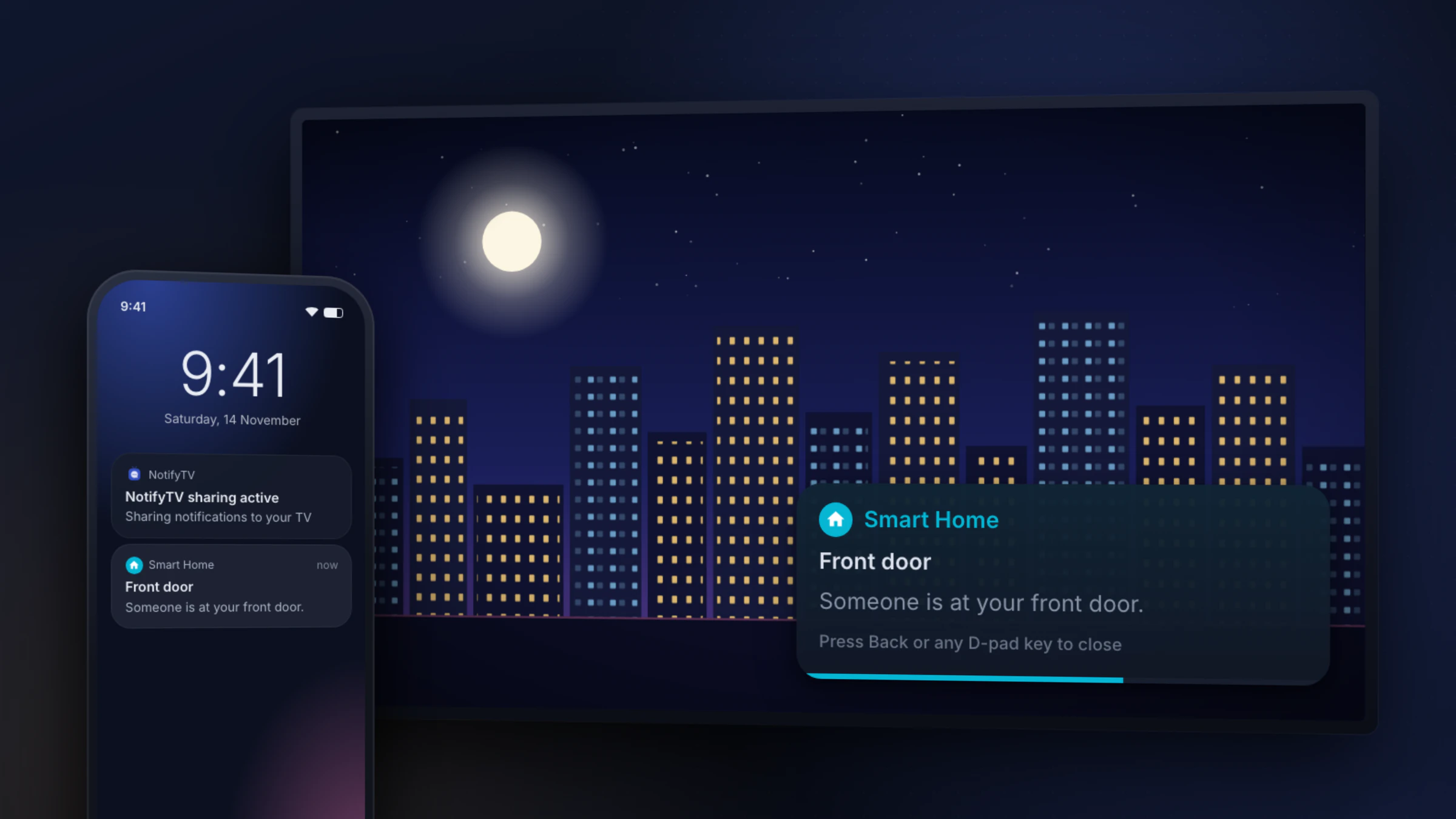
Pick your TV or streaming device.
You need
- An Android phone running Android 8.0 or newer
- A TV or streaming device with Google TV, or Android TV 8.0 or newer, and the Google Play Store
- Both connected to the same home network (Wi-Fi, or Ethernet for the TV)
Short answer
If your TV’s home screen has the Google Play Store and it runs Android TV 8.0 or newer, NotifyTV works on it. That covers every Google TV device and most Android TVs from 2017 on, including Sony, TCL, Hisense and Philips models, Google TV Streamer, Chromecast with Google TV and NVIDIA Shield.
It doesn’t work on Samsung, LG, Roku, Apple TV or Amazon Fire TV, or with an iPhone.
TVs and streaming devices that work
| Device | Runs |
|---|---|
| Google TV Streamer | Google TV |
| Chromecast with Google TV | Google TV |
| Sony Bravia | Google TV and Android TV models |
| TCL | Google TV and Android TV models |
| Hisense | Google TV and Android TV models (not VIDAA) |
| Philips | Google TV and Android TV models (not Titan OS) |
| Xiaomi | Mi TV and Mi Box with Google TV or Android TV |
| NVIDIA Shield TV | Android TV |
| onn. 4K streaming box | Google TV |
| Other brands | Any model with Google TV or Android TV and Google Play (for example some Sharp, Toshiba and Panasonic models) |
We list platforms rather than individual models, because NotifyTV works the same on every device with Google TV or Android TV 8.0+. If it doesn’t work on yours, tell us the model and we’ll look into it.
What doesn’t work, and why
| Device | Why not |
|---|---|
| iPhone | The phone app needs Android. |
| Samsung TVs | They run Tizen, which can’t install Google Play apps. |
| LG TVs | They run webOS, which can’t install Google Play apps. |
| Roku | Roku OS can’t install Google Play apps. |
| Apple TV | tvOS can’t install Google Play apps. |
| Amazon Fire TV | Fire TV has no Google Play, and newer Fire TV Sticks don’t run Android at all. |
Have a Samsung, LG or Roku TV?
Plug in a Google TV streaming device, such as Google TV Streamer, Chromecast with Google TV or an onn. Google TV box, and install NotifyTV on it. Popups then appear while you’re watching through that device, but not in the TV’s own apps.
How to check your TV in 10 seconds
- Look for Google TV or Android TV on the box, or in Settings → About on the TV. Android TV needs to be version 8.0 (Oreo) or newer.
- Or look for the Google Play Store (Apps) on the TV’s home screen. If it’s there, you can install NotifyTV.
Phones
You need an Android phone with Android 8.0 or newer, from any brand. Several phones can connect to the same TV. iPhones aren’t supported, because iOS doesn’t let apps read other apps’ notifications.
Sony Bravia and Notify BRAVIA
Sony’s own Notify BRAVIA app, which showed phone notifications on Bravia TVs, was discontinued in 2021. Bravia TVs with Android TV or Google TV can use NotifyTV instead; see the setup guide.