Comparison
An alternative to Notifications for Android TV
Notifications for Android TV and NotifyTV both put your Android phone’s notifications on an Android TV or Google TV. The real differences are calls (NotifyTV shows who’s calling and can decline a SIM call from the remote), Fire TV and Home Assistant (Notifications for Android TV supports them, NotifyTV doesn’t) and how you pay. Checked on 17 November 2026.
Updated
Short answer
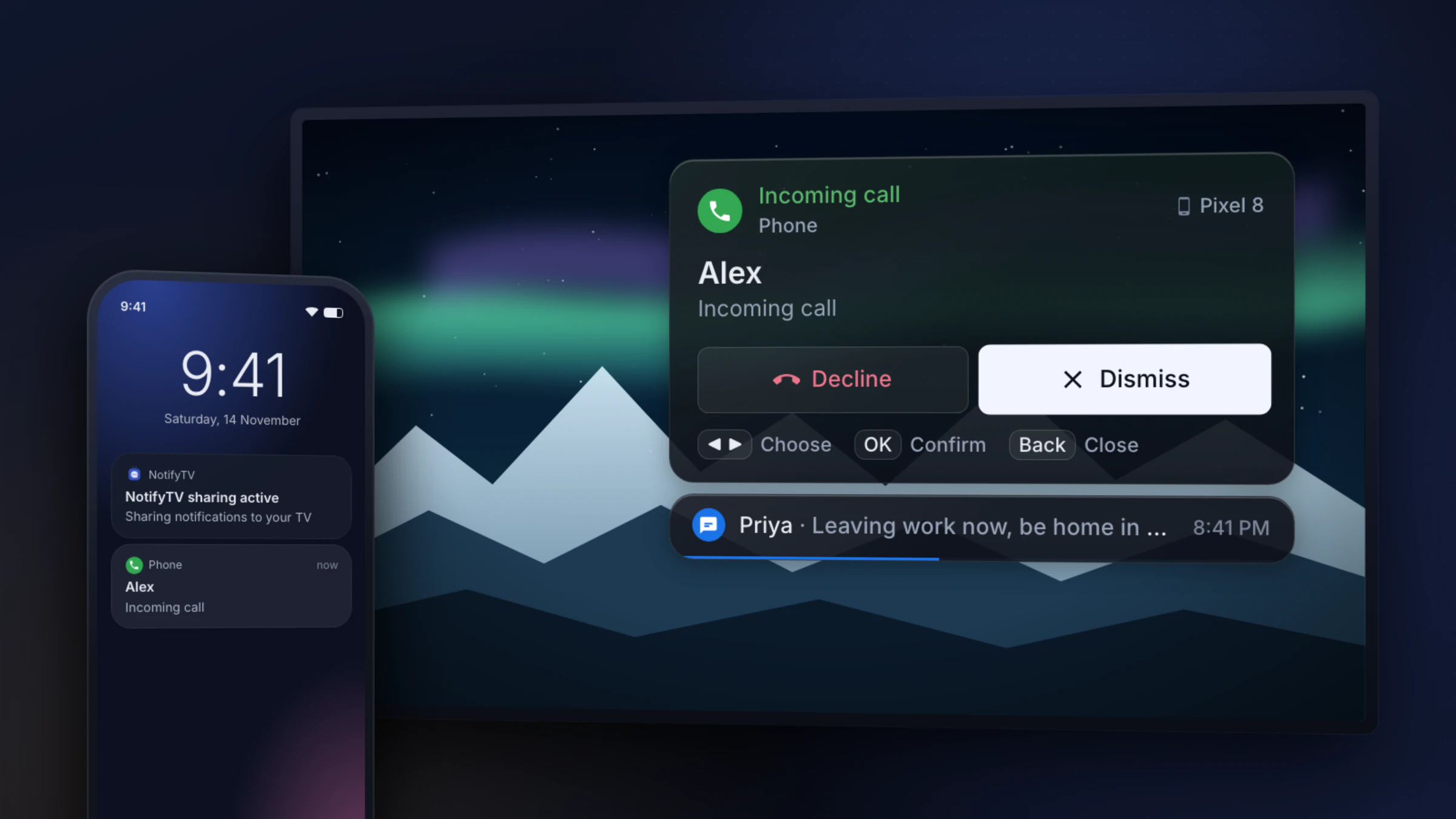
Choose NotifyTV if you want to see who’s calling on the TV, decline a ringing phone call with the remote, or share one TV between several phones. It’s free with ads and works with phones from Android 8.0.
Choose Notifications for Android TV if you have a Fire TV, want popups from Home Assistant automations, or want pictures in your notifications. It has far more installs, and a one-time Premium removes its ads.
We make NotifyTV and aren’t affiliated with Notifications for Android TV or its developer, dream-apps.de; we use the name only to say which app we’re comparing. Facts about it come from its Google Play listing, its FAQ and its privacy policy, checked on 17 November 2026. Apps change; if something here is out of date, tell us and we’ll fix it.
Side by side
| NotifyTV | Notifications for Android TV | |
|---|---|---|
| Caller’s name or number on the TV | Yes: the name from your contacts, or the number, for SIM calls and app calls such as WhatsApp | No. Its FAQ says data-protection restrictions limit it to showing that a call is coming in, without the number or name. It may still work with a phone app that puts the caller in its notification. |
| Decline a call from the remote | Yes, for ringing SIM calls. App calls (WhatsApp and others) are declined on the phone. | Not documented |
| Several phones on one TV | Yes, each popup shows which phone it came from | Not stated for Android TV (its Fire TV listing mentions “mobile device(s)”) |
| Several popups at once | Up to 4 stacked, with a call always on top | Not documented |
| Reminders on the TV | Yes: Remind me, once or repeating, on the phone, the TV or both | Not documented |
| Privacy on a shared TV | Messages that look like one-time codes are hidden by default; “Sender only” hides the message text | Privacy mode, set per app |
| Pictures in notifications | No, text only | Yes: app logos and images from the notification |
| Fire TV | No (Fire TV has no Google Play) | Yes, with its sister app Notifications for Fire TV from the Amazon Appstore (Fire OS devices) |
| Home Assistant | No integration. It can forward the Home Assistant app’s phone notifications like any other app. | Yes: Home Assistant’s official integration sends popups, images included, to its TV app |
| Phone needs | Android 8.0 or newer | Android 11 or newer (its FAQ suggests the Fire TV version for older phones) |
| TV needs | Android TV or Google TV 8.0 or newer, with Google Play | Android TV or Google TV 11 or newer from Google Play (older: manual install), or a Fire TV |
| Price | Free, every feature included, with ads. No paid version. | Free version with ads (privacy policy). Premium removes them: a one-time purchase, $3.99 on Google Play in the US. |
| Last Google Play update | Phone app 14 November 2026, TV app 20 October 2026 | 6 July 2025 |
| Google Play installs and rating | 1K+ installs per app; no rating shown yet | 100K+ installs; 4.0 stars from 1.39K reviews |
Checked 17 November 2026 on the Google Play US listings and the developer’s FAQ. “Not documented” means we couldn’t find it in the listing or FAQ, not that the app can’t do it. NotifyTV facts are for version 1.3 of both apps.
When NotifyTV is the better fit
- You want to know who’s calling. Calls pop up with the caller’s name or number, for SIM calls and app calls such as WhatsApp, so you can decide whether to get up.
- You want to turn a call down without getting up. Decline ends a ringing SIM call from the remote. Dismiss just closes the popup.
- Several people share the TV. Pair every phone in the house; each popup shows whose phone it came from, and up to four popups stack with a call always on top.
- You want reminders on the big screen. Set a reminder on the phone and it pops up on the TV at the right time.
- Your phone is older. NotifyTV needs Android 8.0 or newer; Notifications for Android TV asks for Android 11.
When Notifications for Android TV is the better fit
- You watch on a Fire TV. Its sister app, Notifications for Fire TV, runs on Fire TV devices. NotifyTV needs Google Play, so it doesn’t.
- You use Home Assistant. Home Assistant’s official “Notifications for Android TV / Fire TV” integration sends popups straight to its TV app, including camera snapshots. NotifyTV has no integration or webhook.
- You want pictures. It shows app logos and images from notifications; NotifyTV popups are text only.
- You’d rather pay once than see ads. Its Premium is a one-time purchase that removes ads. NotifyTV is free with ads and has no paid version.
Other options
- Android TV Notifier (SmartProjects) can show the contact photo of a caller or SMS sender and accepts custom popups from Tasker or MacroDroid, according to its GitHub page, which also says the Google Play version is restricted on SMS and call permissions. It lists Fire TV as supported. Last Google Play update: 28 August 2026.
- TvOverlay is an overlay with a clock and notifications from your phone (through its Remote app), a REST API, MQTT or Home Assistant. Its TV app was last updated on Google Play on 4 October 2024 (listing).
- PiPup is an open-source TV app that shows popups sent over HTTP by home-automation systems; there’s no phone app. It isn’t on Google Play in the US, so it’s installed by hand (GitHub).
All four, side by side on price, ads, calls and privacy: phone notification apps for Android TV, compared.
Switching takes a few minutes
- 1
Install NotifyTV on the TV and the phone
Both apps are free on Google Play. Search for NotifyTV on the TV’s Play Store, or use the buttons below on your phone.
- 2
Pair them
Let the phone find the TV on your Wi-Fi, scan the QR code on the TV, or type the TV’s IP address. Calls come through straight away.
- 3
Check your apps
Common messaging apps such as SMS, WhatsApp and Gmail are already selected. Add or remove any app in the list.
Frequently asked questions
Does Notifications for Android TV show caller ID?
Not on its own. Its FAQ says that, because of data-protection restrictions, it can show that a call is coming in but not the caller’s number or name; it may still work with a phone app that puts the caller in its notification (checked 17 November 2026). NotifyTV shows the caller’s name from your contacts, or the number, for SIM calls and app calls such as WhatsApp.
Is NotifyTV free?
Yes. Both apps are free on Google Play with every feature included, and they show ads. There is no paid version and no account to create.
Does NotifyTV work on Fire TV?
No. The NotifyTV TV app needs Android TV or Google TV with Google Play, which Fire TV doesn’t have. If you watch on a Fire TV, Notifications for Fire TV, the sister app of Notifications for Android TV, supports it.
Can I use NotifyTV and Notifications for Android TV at the same time?
You can install both while you decide. Each app forwards notifications on its own, so the same message can pop up twice; turn forwarding off in the one you’re not using.
Does NotifyTV work with Home Assistant?
Not directly: there is no Home Assistant integration or webhook. If the Home Assistant app on your phone shows a notification, NotifyTV can forward it to the TV like any other app, as text without a camera snapshot. For automations that send popups straight to the TV, with images, Home Assistant’s Notifications for Android TV / Fire TV integration or TvOverlay fit better.
Which phones and TVs does NotifyTV need?
An Android phone with Android 8.0 or newer, and a TV or streaming device with Android TV or Google TV (8.0 or newer) and Google Play. It doesn’t work with iPhone, Samsung (Tizen), LG (webOS), Roku, Apple TV or Fire TV.