How to turn off notifications on Google TV and Android TV
Turn off one app’s notifications, hide home-screen banners, stop Nest Doorbell alerts and fix “You’re missing important alerts” on Google TV and Android TV.
By NotifyTV TeamPublished 7 min read
The short answer: Google TV and Android TV have no single switch for every notification. You turn them off app by app: on Google TV, open Settings → Apps → See all apps, pick the app and turn off Notifications; on Android TV it’s Settings → Apps → the app → Notifications → Off. If your TV says “You’re missing important alerts”, it’s asking for the opposite: Google TV’s own system notifications are off, and you turn them back on under Settings → Apps → Special app access → Notification access.
We checked every menu path against Google’s help pages and the Android TV Settings app on 17 November 2026. TV makers such as Sony, TCL and Hisense rename or move some menus, so the words on your TV may differ slightly.
Where notifications on Google TV come from
Most popups on a Google TV or Android TV come from one of these, and each has its own switch:
- Google TV itself. In Google’s words, system notifications “tell you about things like low storage or connectivity issues.” On Google TV they collect in the dashboard, the side panel that opens when you select Settings at the top right of the home screen or hold Home on the remote. Sony’s BRAVIA help guide shows a Clear all button there.
- Apps you installed. Any app can post notifications: updates, offers, new episodes. You can turn these off per app (below).
- Popups an app draws itself. Some apps show messages inside the app, which only that app’s settings control. Apps that draw on top of other apps, such as screen dimmers or notification apps like ours, need the Display over other apps permission, which you can take away.
- Google Home. On Google TVs with the home panel, a Nest Doorbell can show who’s at the door.
- The home screen. Featured banners, recommendation rows and sponsored rows aren’t notifications, but they’re often what people want gone. They have their own settings.
- Your TV maker. Some messages come from the TV’s own software, such as banners when you switch input. Those settings are in the TV maker’s menus and differ by brand.
Turn off notifications for one app
On Google TV
- At the top right of the home screen, select Settings. If a side panel opens, select Settings (on some TVs All settings) in it.
- Select Apps → See all apps.
- Select the app. Built-in apps are hidden at first: select Show system apps at the bottom of the list to see them.
- Turn off Notifications.
Some built-in apps don’t let you turn their notifications off; for those, the switch is greyed out. Google’s help uses the same route to an app’s settings on Google TV (Fix problems with your Google TV device, Control smart home devices on your Google TV); the Notifications switch on the app’s page is part of the Android TV Settings app, whose source code is public.
On Android TV
Google’s Android TV help gives the path: Settings → Apps → select the app → Notifications → Off. On older Android TVs, Apps sits under Device, and the apps you installed are listed under Downloaded apps.
On newer Android TV software the Apps screen lists recently opened apps first, so select See all apps (and Show system apps for built-in ones), as on Google TV.
Google adds a useful side effect: turning off an app’s notifications also keeps that app out of the top row of the Android TV home screen.
An Android TV box with Google Play usually has the same Android TV settings, so the steps above apply. Boxes from pay-TV operators sometimes use their own menus; if yours does, the operator’s help pages are the place to look.
Stop an app drawing popups over everything
If an app puts its own popups on top of what you watch and has no setting to stop them, take away its overlay permission:
- Open Settings → Apps → Special app access → Display over other apps.
- Turn the app off.
That stops all of the app’s popups, so a feature that depends on them stops too. For NotifyTV, for example, it means no popups at all.
Can you turn off all notifications at once?
Not with one switch. We found no setting in Google’s help or in the Android TV Settings app that silences every app at once, so turn off the apps that bother you one by one. Apps only mode changes the home screen, not notifications.
One switch to leave alone is Notification access for Google TV (Settings → Apps → Special app access → Notification access). It looks like a master switch, but it’s what lets Google TV show its own system messages. Google’s help describes turning it off as an accident to undo: that is when the warning “You’re missing important alerts” appears.
What does “You’re missing important alerts” mean on Google TV?
It means Google TV’s own system notifications are turned off. Google’s help says: “If you find an alert that says ‘You’re missing important alerts,’ you may have accidentally turned off notifications for your TV. System notifications tell you about things like low storage or connectivity issues.”
The short link in the warning, g.co/tv/notifications, opens that help page: Fix problems with your Google TV device, section “Turn on system notifications” (we followed the link on 17 November 2026). The fix, from that page:
- At the top right of your Google TV home screen, select Settings.
- Select Apps → Special app access → Notification access.
- Turn on Google TV.
The warning is about the TV’s own notifications. It has nothing to do with phone notifications on the TV: Google TV doesn’t show your phone’s calls or texts on its own. NotifyTV, our app for that, doesn’t use this setting on the TV either. Its TV app needs Display over other apps, and notification access is something you allow on the phone, for the NotifyTV phone app (setup guide).
Hide recommendation banners and sponsored rows
On Google TV (Google’s help):
- Hide one featured banner: highlight it, press and hold Select on the remote and choose Hide. Google says hidden banners stay off the top of the screen for at least 18 months.
- Apps only mode: open Settings → Accounts & Sign In (Accounts & Profiles on newer devices) → your profile → Apps only mode → Turn on. You get a list of your apps instead of personal recommendations. Google says you still see sponsored content and teasers, and Search and the Google Assistant don’t work in this mode.
On Android TV (Google’s help, which notes that not all Android TVs have these settings):
- Remove rows: Settings → Device preferences → Home screen → Customize channels, then turn channels off.
- Stop previews playing: in the same Home screen menu, turn off Enable video previews or Enable audio previews.
- Stop personalized recommendations: in the same menu, under “Discover”, select Sign out → Yes, sign out.
- What stays: Google says the suggestions on the Home tab are “based on trending content or sponsored by media partners and can’t be turned off.”
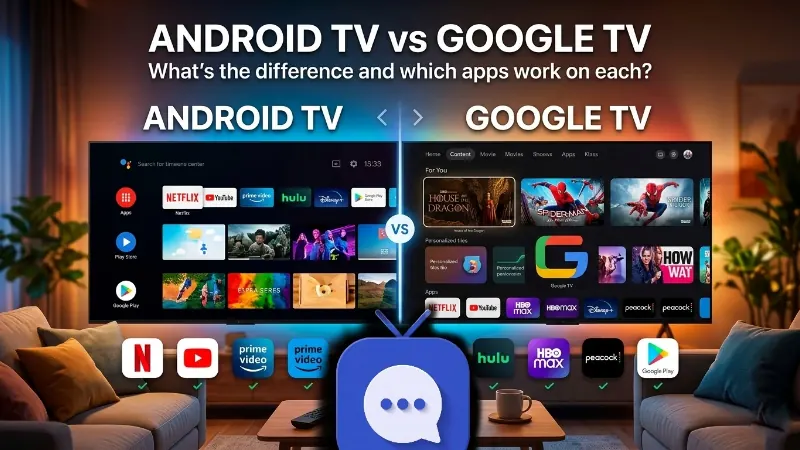
How the two home screens differ is in Google TV vs Android TV.
Turn off Nest Doorbell alerts on your TV
On Google TV devices with the home panel, a Nest Doorbell press shows a preview of the visitor in the top-right corner for a few seconds. It “doesn’t interrupt content unless you interact with it” (9to5Google, 25 September 2024). Two places control it:
- On the TV: Google’s help puts the home panel and its visitor notifications under Settings → Accounts & Profiles → your profile → Google Home (Google TV help). Turn visitor notifications off there, or turn off the home panel altogether.
- In the Google Home app on your phone: tap Home → Cameras → your doorbell, tap the video, then Settings → Settings and turn off Visitor announcements (Google Home help). This turns announcements off on the Google speakers, displays and TVs in that home, not only on the TV.
For doorbells from other brands, Google says visitor announcements may not be available on all third-party doorbells that work with Google; the doorbell maker can tell you.
If you use NotifyTV: keep only the calls
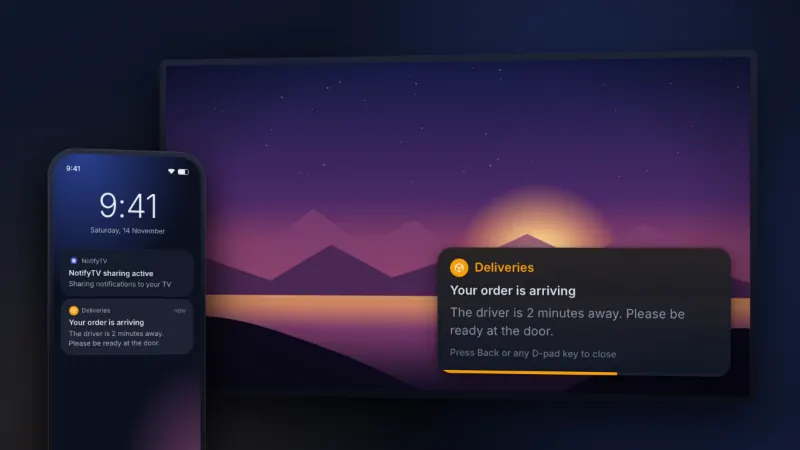
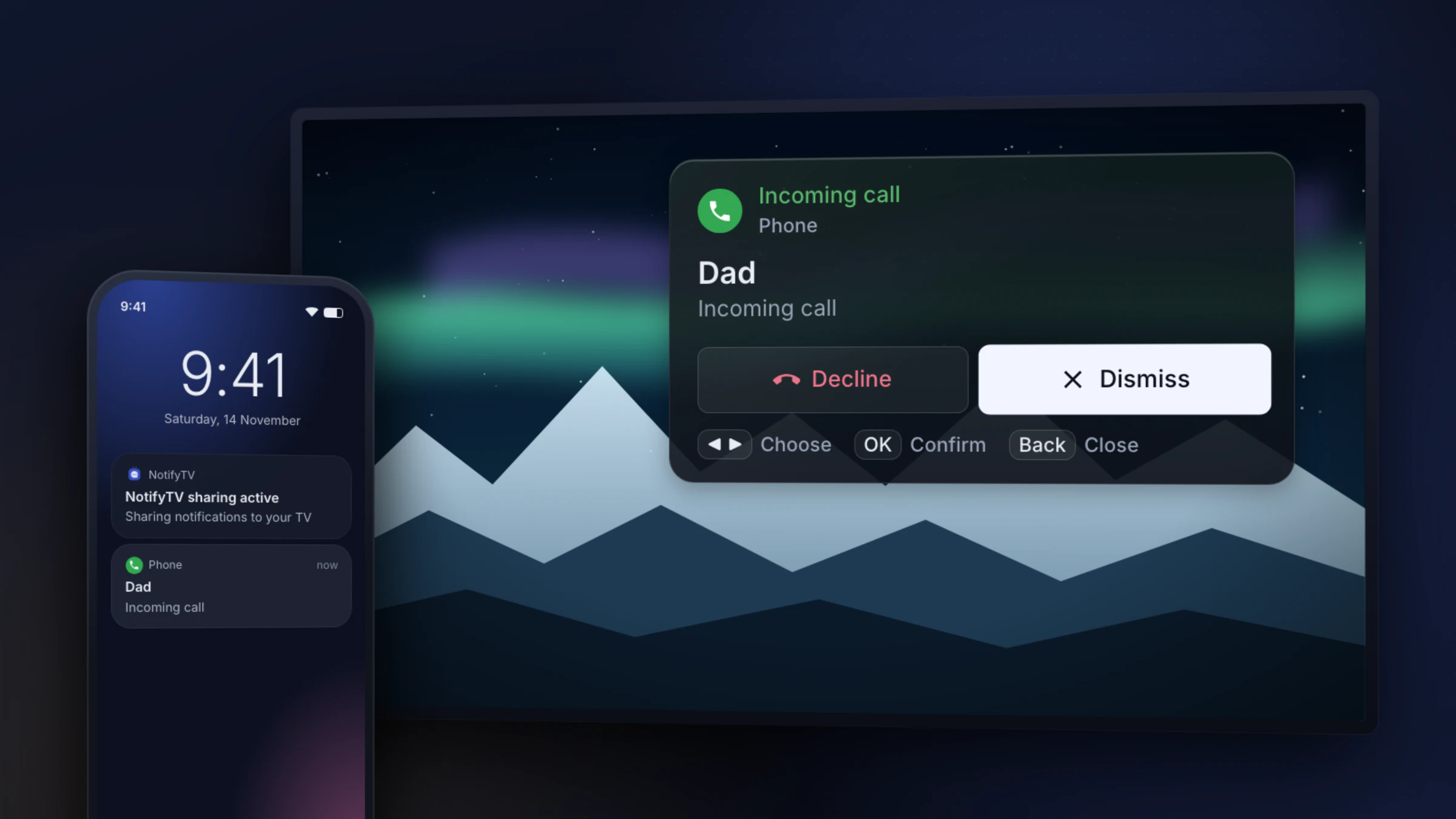
NotifyTV shows your Android phone’s calls and notifications as popups on the TV. Those popups aren’t Google TV notifications, so the switches above don’t control them. In version 1.3 of the apps:
- Pause: NotifyTV’s home screen on the TV has a Do Not Disturb row. 1 Hr pauses notifications for an hour, and Till 7 AM until 7 the next morning. Incoming calls and the reminders you set still come through.
- Calls only: the switch in the same row keeps out everything except calls and reminders until you turn it off.
- Everything off: turn Notification Receiving off on the TV, or turn sharing off on the phone or with the phone’s Notification sharing widget.
- Fewer apps: in the phone app’s Select Apps, turn off the apps you don’t need on the TV. Calls come through either way.
More on these in Features: pause and calls only and how calls show on your TV.
Frequently asked questions
How do I turn off notifications on Google TV?
One app at a time. At the top right of the home screen, select Settings, then Apps → See all apps. Pick the app (select Show system apps to find built-in ones) and turn off Notifications. Menu names vary a little between TV makers, and some built-in apps don’t let you turn their notifications off.
How do I turn off notifications on an Android TV box?
The same way as on an Android TV: Settings → Apps → select the app → Notifications → Off. On newer software, select See all apps before the app; on older software, Apps sits under Device. Boxes from pay-TV operators sometimes use their own menus, so check the operator’s help if you can’t find the setting.
Can I turn off all notifications on Google TV at once?
Not with one switch. We found none in Google’s help or in the Android TV Settings app. Turn off Notifications for each app that bothers you, hide banners or turn on Apps only mode for the home screen, and leave Notification access for Google TV switched on.
What is g.co/tv/notifications?
It’s the short link in Google TV’s warning “You’re missing important alerts”. It opens Google’s help page Fix problems with your Google TV device at the section Turn on system notifications. The fix it gives: Settings → Apps → Special app access → Notification access, then turn on Google TV.
What is Notification access on Google TV?
It’s the list of apps that may read the TV’s notifications, under Settings → Apps → Special app access → Notification access. Google TV itself needs it to show system messages such as low storage or connection problems; with it off, Google TV shows the warning “You’re missing important alerts”. Give it only to apps you trust, because they can read every notification on the TV.
Why are my notifications not showing up on Android TV?
If the TV’s own messages are missing, check that the app’s Notifications switch is on (Settings → Apps → the app) and, on Google TV, that Google TV is on under Settings → Apps → Special app access → Notification access. If you expected your phone’s notifications: Android TV and Google TV don’t show them on their own. An app such as NotifyTV does that; if its popups don’t appear, check that it may display over other apps, that receiving is on and that the TV isn’t paused or in calls-only mode.
Can I turn off notifications from the Google TV app on my phone?
Yes. The Google TV phone app has its own notifications, separate from the TV. On an Android phone, open Settings → Notifications → App notifications, choose Google TV and turn its notifications off or keep only the types you want. You can also touch and hold one of its notifications and tap the settings icon. Menu names vary by phone.
How do I stop NotifyTV popups during a film but still see calls?
Open NotifyTV on the TV and use the Do Not Disturb row on its home screen: 1 Hr or Till 7 AM pauses notifications for that long, and the switch turns on calls only until you switch it off. Incoming calls and the reminders you set still come through either way.