Guide
Alexa on Google TV and Android TV: what actually works
You can’t install Alexa on a Google TV or Android TV, but two things do work: Alexa can control many of these TVs by voice, and the alerts from your Alexa app can pop up on the TV while you watch. Here is what works on which TV, and how to set each one up.
Updated
Short answer
There’s no Alexa app for Google TV or Android TV, so you can’t talk to Alexa through the TV. What you can do:
Control the TV with Alexa: Sony, TCL and Hisense let an Echo or the Alexa app control many of their Google TV and Android TV models, for example to turn them on and off, through their own Alexa skill.
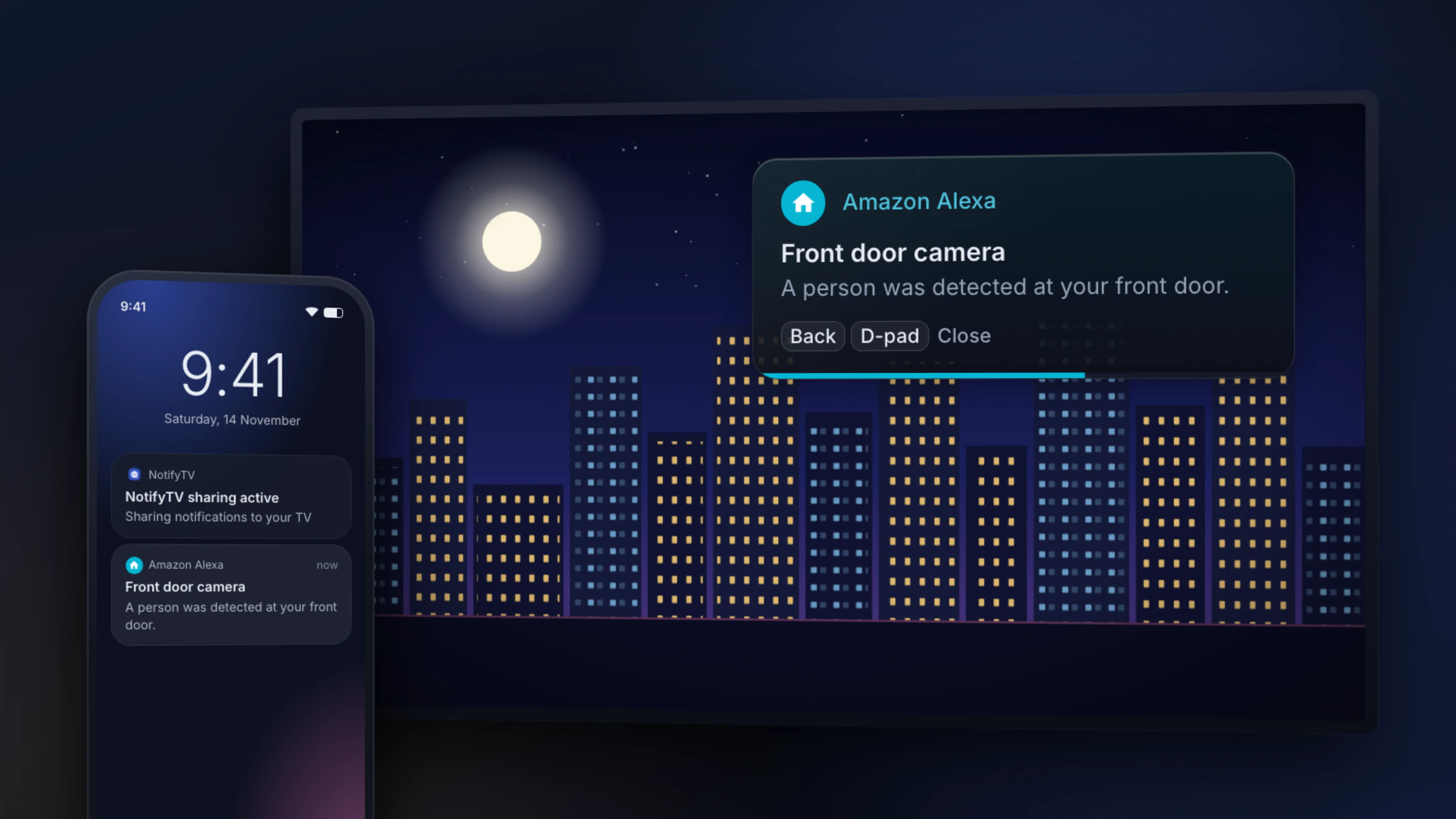
See Alexa’s alerts on the TV: with NotifyTV, the notifications the Alexa app sends to your Android phone pop up on the TV over whatever you’re watching.
Three different things get called “Alexa on the TV”: talking to Alexa through the TV, Alexa controlling the TV, and seeing Alexa’s alerts on the screen. This guide takes them one at a time. We make NotifyTV and aren’t affiliated with Amazon, Ring or the TV makers below. Their details were checked on 17 November 2026, with a source for each.
Alexa and your TV: what works on each
| Your TV runs | Talk to Alexa on the TV? | Alexa controls the TV? | Alexa app alerts on the screen? |
|---|---|---|---|
| Google TV / Android TV Sony, TCL, Hisense, Philips, Google TV Streamer | No. These TVs come with Google’s assistant | On many brands, through the TV maker’s Alexa skill | Yes, with NotifyTV and an Android phone |
| Fire TV Fire TV Stick, Fire TV Cube, Fire TV smart TVs | Yes, Alexa is built in | Yes | Amazon’s own features, such as Ring camera picture-in-picture on select models. NotifyTV doesn’t run on Fire TV |
| Samsung (Tizen) Samsung smart TVs | Yes, on Samsung smart TVs from 2020 on | Yes, built in, or through the SmartThings skill on older models | Not with NotifyTV, which can’t be installed on Samsung TVs |
| LG (webOS) LG smart TVs | On many models | Yes, through LG’s ThinQ skills (webOS 4.0 and newer) | Not with NotifyTV, which can’t be installed on LG TVs |
Checked on 17 November 2026. Not sure what your TV runs? If it has the Google Play Store, it runs Android TV or Google TV: check your TV.
Sources: Google Play: Amazon Alexa · TCL: control your TCL Google TV with Alexa · Sony: FAQs for using Amazon Alexa with BRAVIA TVs · Samsung: use Alexa with your Samsung TV · LG: LG ThinQ and Alexa voice control · Ring: viewing your cameras on Fire TV with Alexa
Can you install Alexa on Google TV?
No. Amazon’s Alexa app on Google Play is made for phones and tablets, and Google Play on a TV has no Alexa app to install (checked on 17 November 2026). Google TV and Android TV come with Google’s own voice assistant, so the microphone button on the remote talks to Google, not to Alexa.
Some Sony BRAVIA TVs come with a small app from Amazon, called TV Control Setup with Amazon Alexa or TV Control with Smart Speakers. It links the TV to your Alexa account so that Alexa can control it. You still talk to Alexa through an Echo or the Alexa app on your phone, not through the TV.
You’ll find guides that tell you to download the Alexa phone app’s APK file and install it on the TV. We don’t recommend it: the app is built for a touchscreen, not a remote, the remote’s microphone button still opens Google’s assistant, it gets no updates from Google Play, and APK download sites are a security risk for the account that runs your home.
Sources: Google Play: Amazon Alexa · Sony: connect your TV to the Amazon Alexa app
Can Alexa control or turn on a Google TV?
On many models, yes, but it’s a feature of the TV maker, not of Google TV. Each maker publishes an Alexa skill. You enable it in the Alexa app, link the TV, and then say things like “Alexa, turn up the volume on the living room TV” to an Echo or the Alexa app. What each maker says, checked on 17 November 2026:
- Sony BRAVIA: Sony documents Alexa control for its Android TV and Google TV models. Which Sony skill you enable depends on the app your TV has: TV Control with Smart Speakers or TV Control Setup with Amazon Alexa. Sony says Remote start must be on in the TV’s settings for “Alexa, turn on the TV” to work.
- TCL: TCL says Alexa can control power, volume, playback, apps and inputs on its Google TVs. Open the Work with Alexa app on the TV, then enable the TCL skill in the Alexa app and enter the code the TV shows. TCL adds that commands vary by model.
- Hisense: Hisense’s spec sheets for some Google TV models, such as the U7 (100U76N), say the TV “works with Alexa through any of your Alexa-enabled devices” to switch it on or off and change channels. Check the spec sheet or manual for your model.
- Philips: in 2018 Philips TV announced an Alexa skill, Philips Smart TV Voice Control, for its Android TVs, covering power, channels, volume, inputs and playback. We found no current Philips page about Alexa on its newer Google TV models.
- Google TV Streamer and Chromecast with Google TV: we found no official Alexa skill for Google’s own streamers. You control them by voice with Google’s assistant.
Sources: Sony: FAQs for using Amazon Alexa with BRAVIA TVs · Sony: connect your TV to the Amazon Alexa app · TCL: control your TCL Google TV with Alexa · Hisense: U7 Google TV (100U76N) spec sheet (PDF) · TP Vision (Philips TV), August 2018
How to see your Alexa alerts on the TV
This is the part NotifyTV covers. It’s a pair of free apps, one on your Android phone and one on your Android TV or Google TV. When the Alexa app shows a notification on your phone, NotifyTV shows the same notification as a popup on the TV, over your home Wi-Fi. It doesn’t sign in to Amazon or look inside your Alexa account: it only sees the notification your phone receives. The apps are supported by ads.
What the Alexa app notifies your phone about depends on your devices and on its settings (in the Alexa app, More > Settings > Notifications). Amazon’s pages mention, for example, Alexa reminders on your phone, Hunches, and person or package alerts from supported cameras and video doorbells.
Sources: Amazon: turn Alexa phone notifications on or off · Amazon: mobile notifications for Hunches · Amazon Alexa developer blog, April 2022
Set it up
- 1
Check your TV and phone
The TV needs Google TV, or Android TV 8.0 or newer, with the Google Play Store. The phone needs Android 8.0 or newer and the Amazon Alexa app; iPhones aren’t supported. Check your TV.
- 2
Install NotifyTV on the TV and the phone
Both apps are free on Google Play.
- 3
Pair them
Let the phone find the TV on your Wi-Fi, scan the QR code on the TV, or type the TV’s IP address.
- 4
Switch on Amazon Alexa in Select Apps
Open Select Apps in the phone app and switch on Amazon Alexa. Common messaging apps are on from the start; Alexa, doorbell and other smart-home apps aren’t, so turn on each one you want on the TV.
- 5
Let the Alexa app notify your phone
In the Alexa app, check More > Settings > Notifications, and make sure your phone allows notifications from the Amazon Alexa app. Whatever reaches the phone can then reach the TV.
What shows on the TV
- The notification’s text: the app name, the title and the message, as the Alexa app wrote them.
- Text only: no camera snapshot and no video.
- Sender only mode: if you turn it on in the phone app, the TV shows only the notification’s title.
The setup guide has the full walkthrough and fixes for common problems, such as popups that don’t appear.
What NotifyTV can’t do with Alexa
- It doesn’t put Alexa on the TV, and you can’t talk to Alexa through it.
- It doesn’t control the TV or your smart-home devices. That’s the TV maker’s Alexa skill.
- It can’t answer the door or show camera video. Use your doorbell’s app on the phone for that.
- It needs your Android phone at home, on the same Wi-Fi as the TV.
- It can’t be faster than your phone: the popup appears when the Alexa app’s notification reaches the phone.
- It doesn’t run on Fire TV, Samsung, LG or Roku TVs, or with an iPhone.
Ring, Blink and other doorbells
If your doorbell is linked to Alexa, its own app (Ring, Blink or your doorbell maker’s) also notifies your phone, straight from the maker rather than through Alexa. Switch that app on in Select Apps too: like the Alexa app, doorbell apps aren’t on by default. More smart-home and notification guides are on the guides page.
Using Google Home instead of Alexa? See Google Home notifications on your TV.
Fire TV, Samsung and LG
- Fire TV has Alexa built in, and Ring says select Fire TV models can show a Ring camera picture-in-picture. To quiet notifications on a Fire TV, Amazon describes Settings > Preferences > Notification Settings, with a switch per app and Do Not Interrupt. NotifyTV doesn’t run on Fire TV, because Fire TV has no Google Play.
- Samsung says its smart TVs have Alexa built in from 2020 on; older models work with Alexa through the SmartThings skill.
- LG builds Alexa into many TVs, and its ThinQ skills let Alexa control TVs with webOS 4.0 and newer.
Samsung and LG TVs can’t install Google Play apps, so NotifyTV doesn’t run on them. A Google TV streaming device plugged into the TV works while you watch through it.
Sources: Ring: viewing your cameras on Fire TV with Alexa · Amazon Developer: notifications on Fire TV · Samsung: use Alexa with your Samsung TV · LG: LG ThinQ and Alexa voice control
NotifyTV isn’t made by or affiliated with Amazon, Alexa or Ring. It shows the notifications your phone already receives.
Alexa alerts on your Google TV
Free on Google Play for Android phones and Android TV / Google TV, supported by ads. Install both apps, pair them and switch on Amazon Alexa.
Frequently asked questions
Can I install the Alexa app on Google TV?
No. Amazon’s Alexa app on Google Play is made for phones and tablets, and there’s no Alexa app for Android TV or Google TV in Google Play (checked on 17 November 2026). Some Sony BRAVIA TVs come with a small Amazon setup app, but it only links the TV so that Alexa can control it. We don’t recommend installing the phone app’s APK file on a TV: it’s built for a touchscreen, gets no updates from Google Play, and APK download sites are a security risk.
Does Alexa work with Google TV?
Partly. You can’t talk to Alexa through a Google TV, which comes with Google’s own assistant. But many Google TV and Android TV models from Sony, TCL and Hisense can be controlled by Alexa through the TV maker’s Alexa skill, from an Echo or the Alexa app. And with NotifyTV, the notifications the Alexa app sends to your Android phone can pop up on the TV.
Can Alexa turn on my Google TV?
Often, if the TV supports it. Enable your TV maker’s Alexa skill, then make sure the TV can be woken over the network: Sony calls the setting Remote start, and TCL names settings such as Network Standby, Quick Start or Power On by Network, adding that some models don’t have one. We found no official Alexa skill for Google’s own Chromecast with Google TV or Google TV Streamer.
How do I see Alexa notifications on my TV?
On an Android TV or Google TV, install NotifyTV on the TV and on your Android phone, pair them on the same Wi-Fi, and switch on Amazon Alexa in the phone app’s Select Apps list (it isn’t switched on by default). When the Alexa app notifies your phone, the TV shows the same notification as a popup over what you’re watching.
Do I need an Echo?
Not for NotifyTV. It shows the notifications the Alexa app posts on your phone, so it needs that app, your Android phone and the TV. Which notifications the Alexa app sends depends on your Alexa devices and its notification settings. To control the TV by voice you need something to talk to Alexa through, such as an Echo or the Alexa app on your phone.
Does NotifyTV work on Fire TV?
No. NotifyTV needs a TV with Google Play, and Fire TV doesn’t have it. Fire TV has Alexa built in and its own Alexa features, such as showing a Ring camera picture-in-picture on select models.
How do I stop Alexa notifications on my TV?
On a Fire TV, Amazon describes Settings > Preferences > Notification Settings, where you can turn off notifications app by app or turn on Do Not Interrupt. With NotifyTV, switch Amazon Alexa off in the phone app’s Select Apps list, or pause popups on the TV for 1 hour or until 7 AM.
Is NotifyTV free?
Yes. Both apps are free on Google Play and supported by ads. No account is needed.