Guide
How to see and reply to text messages on your TV
Your phone buzzes on the other side of the room in the middle of a film. Here’s how to read the text on your Android TV or Google TV, and answer it with the remote.
Updated
Short answer
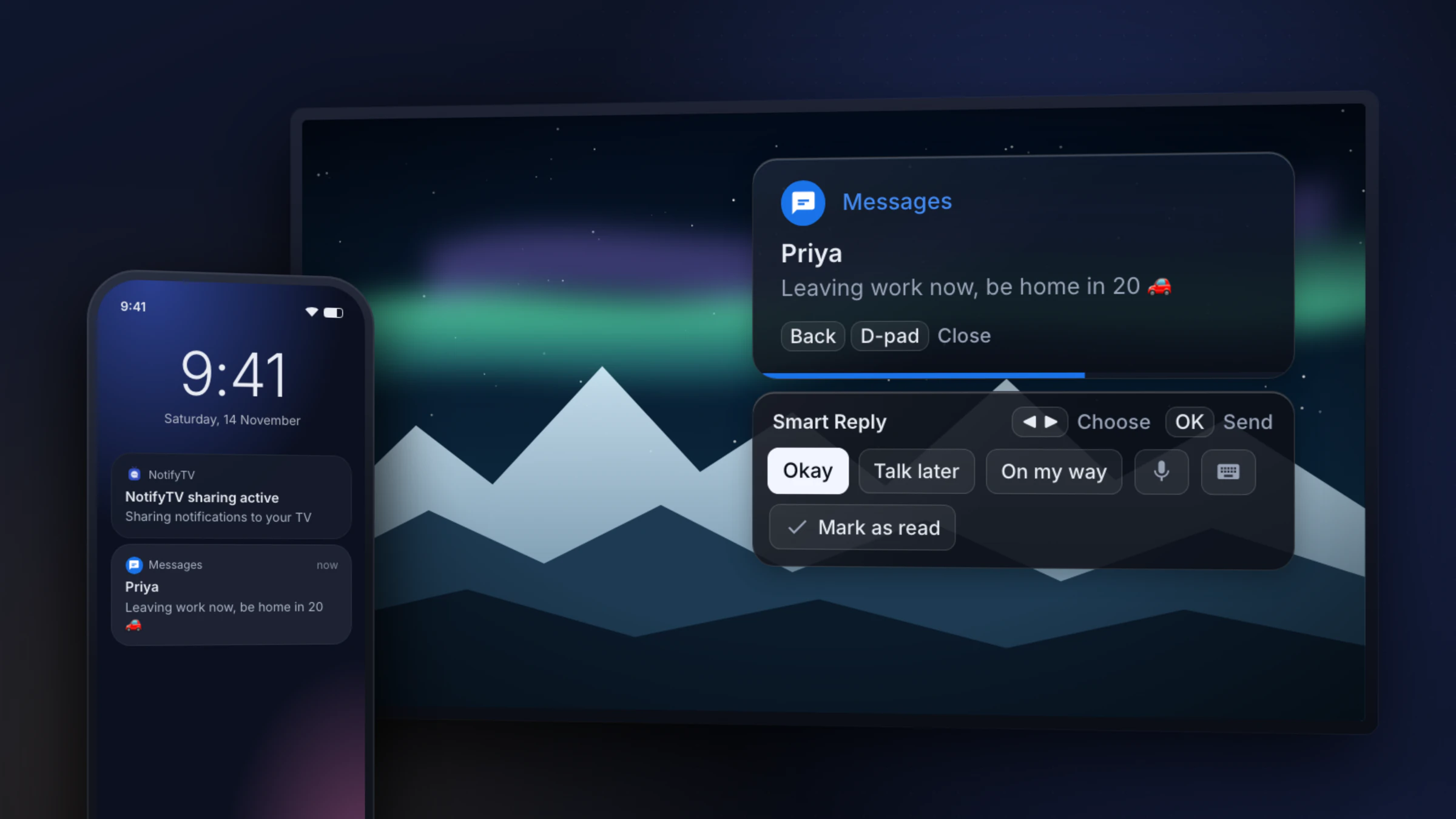
Android TV and Google TV don’t come with a texting app, so the messages have to come from your Android phone. Install NotifyTV on the phone and the TV, and texts from Google Messages, WhatsApp and the other apps you choose pop up on the TV screen. Since version 1.4 you can also reply from the remote with Smart Reply: a quick reply, the TV’s keyboard or your voice. The reply is sent from your phone.
Can you text on a smart TV?
Not on its own. Android TV and Google TV have no SMS app, and your phone number lives on your phone, not on the TV. The usual workarounds fall short:
- Screen mirroring or casting puts your whole phone on the TV, film paused, and you still type the reply on the phone.
- Glancing at the phone means getting up, or missing the text because the film is loud.
NotifyTV takes a different route: the phone app sends each new message to the TV as a small popup over whatever you’re watching. Nothing is mirrored, and only the apps you pick are sent.
What a text looks like on the TV
The popup shows the app, who it’s from and the message, then disappears after a few seconds. If several texts arrive together, they stack, up to 4 on screen at once. A long message shows its first lines; press OK on the remote to read the rest.
Reply from the remote with Smart Reply
Since version 1.4, a Smart Reply strip waits under message popups. You don’t need a keyboard or the phone:
- 1
Press Down on the remote
When the message pops up, Down takes you to the strip under it. The popup stays on screen while you choose.
- 2
Pick a reply
Use ◀ ▶ to choose one of the quick replies: “Okay”, “Talk later” and “On my way”. Prefer your own words? Choose the keyboard and type with the TV’s on-screen keyboard, or the microphone and say it into the remote on TVs that support speech recognition.
- 3
Press OK to send
The TV shows “Sent ✓” once your phone has sent it. Actions the app puts in its notification, such as Mark as read, are on the strip too.
How the reply is sent
The TV hands your reply to the phone over your Wi-Fi, and the phone sends it through the messaging app’s own reply, the same as replying from the notification on your phone. So the person sees an ordinary reply from you, in the same chat, and a text costs what a text from your phone always costs.
That’s also why Smart Reply appears for apps whose notifications have a reply box, like Google Messages, WhatsApp, Telegram or Signal. If an app’s notification has no reply, the TV doesn’t offer one either. Calls don’t get a reply; they keep their Decline and Dismiss buttons.
Change the quick replies in the TV’s Settings, or from the admin phone’s TV settings. Smart Reply needs version 1.4 of both the phone app and the TV app.
Keep private texts private
A TV is a shared screen, so NotifyTV gives you a few ways to decide what shows on it:
- Choose the apps: only the apps you turn on in Select apps are sent. Leave out the ones you’d rather keep to yourself.
- Hide the message text: with Hide text in the phone app’s Privacy settings, the TV shows who it’s from but not what they wrote. Smart Reply still works.
- Hide who it’s from: the Sender setting shows the name, hides phone numbers (“Hidden number”) or hides the sender completely (“New message”).
- One-time codes stay on the phone: messages that look like verification codes show on the TV as “OTP Received (Hidden)”.
- Decide who can reply: anyone holding the remote can use Smart Reply on your messages. Turn off “Allow Smart Reply from TV” on your phone, or Smart Reply on the TV, and nobody can.
Set it up
- 1
Install NotifyTV on the TV and the phone
Both apps are free on Google Play. The TV needs Google TV or Android TV 8.0+; the phone needs Android 8.0 or newer. iPhones aren’t supported.
- 2
Pair them on the same Wi-Fi
Scan the QR code on the TV in the phone app, let the phone find the TV on your Wi-Fi, or type the TV’s address.
- 3
Check your messaging apps
Common messaging apps, such as your SMS app and WhatsApp, are already on. Add or remove apps in Select apps, then send a test notification to see it on the TV.
The full walkthrough, with fixes for common problems, is in the setup guide. Not sure your TV works? Check it on the compatibility page.
Frequently asked questions
Can you text on a smart TV?
Android TV and Google TV have no texting app of their own, because your number lives on your phone. With NotifyTV on an Android phone and the TV, texts pop up on the TV screen, and in version 1.4 you can reply with Smart Reply: a quick reply, the TV’s on-screen keyboard or your voice. The reply is sent from your phone, through the messaging app.
Do the phone and the TV need to be on the same Wi-Fi?
Yes. The phone sends each notification straight to the TV over your home network, so both need to be on the same Wi-Fi. Messages don’t pass through a NotifyTV server.
Does it work with an iPhone or a Samsung TV?
No. NotifyTV needs an Android phone (Android 8.0 or newer) and a TV with Android TV or Google TV and Google Play. iPhones, Samsung (Tizen), LG (webOS), Roku, Apple TV and Fire TV aren’t supported.
Will everyone in the room see my texts?
Anyone looking at the TV can see the popup, so choose what it shows. Pick which apps are sent, use Hide text in the phone app’s Privacy settings to show who a message is from but not what it says, and leave verification codes to NotifyTV: messages that look like one-time codes stay on the phone.
Can I reply in my own words?
Yes, in version 1.4. On the Smart Reply strip, choose the keyboard to type with the TV’s on-screen keyboard, or the microphone to say it into the remote on TVs that support speech recognition. You can also change the three quick replies in the TV’s Settings.