Guide
Telegram on Android TV and Google TV: what works, and how to reply from your TV
Telegram doesn’t make an app for TVs, so you won’t find it in Google Play on your Android TV or Google TV. Here’s an honest look at the workarounds, and how to see your Telegram messages on the TV and answer them with the remote.
Updated
Short answer
No, there’s no Telegram app for Android TV or Google TV. Telegram lists no TV app, and its Google Play listing offers phone, tablet, watch and desktop versions, but no TV version (checked on 24 November 2026). Apps with Telegram in the name that you may see in Google Play on a TV are made by other developers.
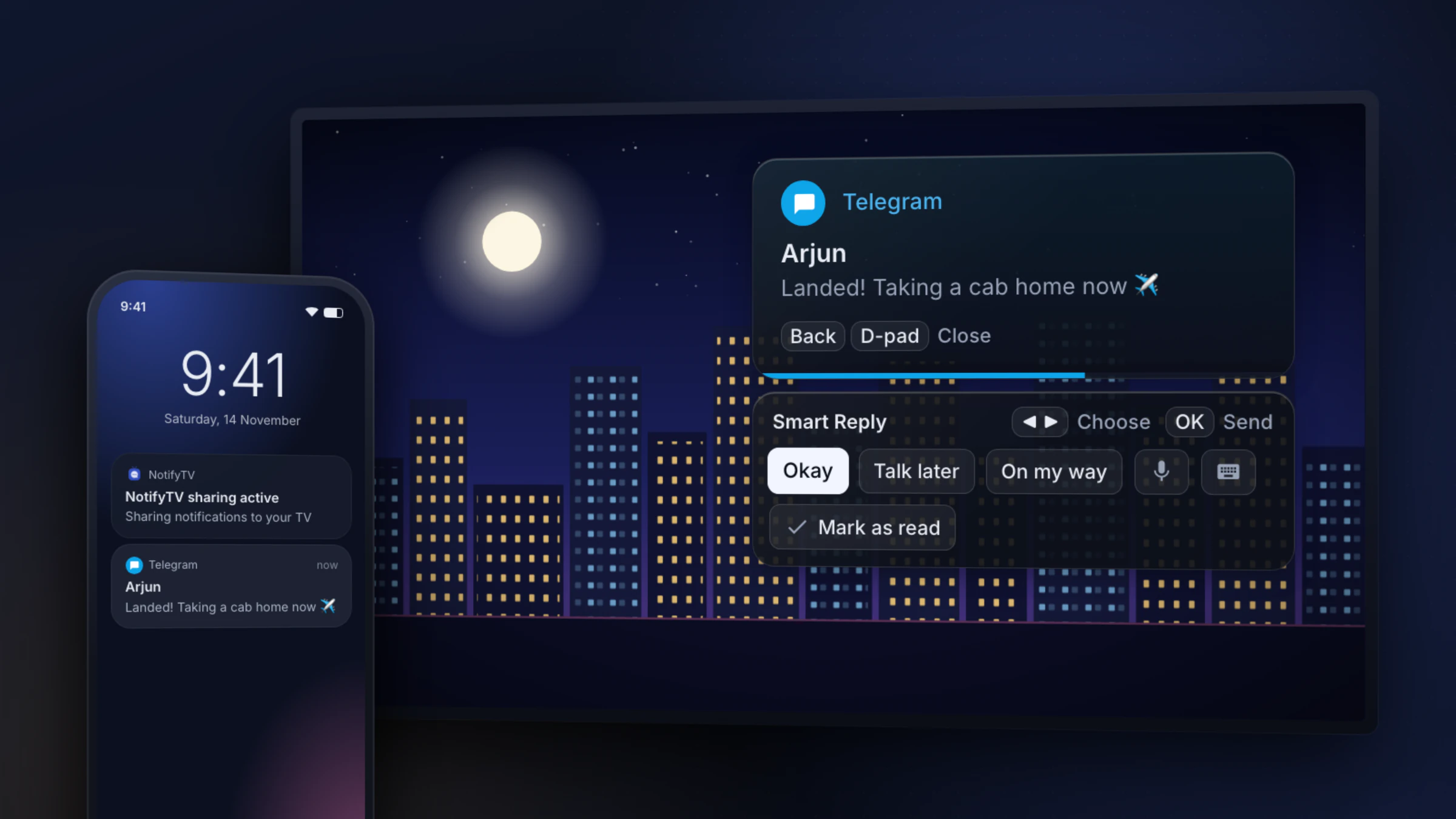
What does work with your own Telegram: NotifyTV shows your Android phone’s Telegram messages as small popups over what you’re watching, and with version 1.4 you can reply from the remote with Smart Reply (a quick reply, the TV’s keyboard or your voice) or mark the chat as read. Telegram on your phone sends the reply.
Is there a Telegram app for Android TV or Google TV?
Not from Telegram. Its apps page lists Telegram for Android and iPhone, Telegram X for Android, desktop apps and Telegram Web, and nothing for TVs of any brand. On Google Play, the Telegram listing shows phone, tablet, watch and desktop versions, but no TV version, so the app doesn’t appear when you search on the TV. Check Google Play on your own TV to see what’s there today.
You may find apps for TVs with Telegram or “gram” in the name. Telegram lets other developers build apps on its platform, and some of these say they’re unofficial. They aren’t made by Telegram, they ask you to sign in with your Telegram account, and we haven’t tested them. If you try one, check who makes it and read its privacy policy first.
Sources (checked on 24 November 2026): Telegram: apps · Telegram on Google Play
Your options, compared
| Option | Good for | Downsides |
|---|---|---|
| Telegram Web in a TV browser | Reading and typing chats on the big screen | Made for computers and phones; needs a browser app on Google TV; typing with a remote is slow; covers what you were watching |
| Unofficial TV apps | Some are built for a TV remote | Not made by Telegram, and you sign in with your Telegram account; we haven’t tested them |
| The phone app’s APK file | Sometimes opens | Built for a touchscreen held upright, no updates from the TV’s Play Store, and APK sites are a security risk |
| Casting from your phone | Watching a Telegram video on the TV | Videos only (or your whole screen, private chats included); you still read and reply on the phone |
| NotifyTV (notifications) | Telegram messages pop up over what you’re watching; reply with the remote using Smart Reply | No chat list, history, photos or videos on the TV; needs an Android phone |
Can I install the Telegram APK on Android TV?
You can sideload the phone app’s APK file on an Android TV or Google TV, and plenty of guides tell you how. We don’t recommend it. The app is built for a touchscreen held upright, not a TV remote. It won’t update from your TV’s Play Store, because Telegram doesn’t offer it for TVs there. And APK download sites are a security risk for an account that holds all your chats. Samsung and LG TVs can’t install APK files at all.
Telegram Web on a TV browser
Telegram Web (web.telegram.org, in two versions called K and A) runs in a web browser, and Telegram lists it for Mac, Windows, Linux and mobile, not TVs. Android TV and Google TV usually don’t come with a browser, so you’d install one from Google Play first, then log in by scanning the QR code with Telegram on your phone (under Settings, Devices). We haven’t tested Telegram Web on a TV. Even where it loads, you’re typing with a remote, the chat covers whatever you were watching, and everyone in the room can read it.
Watch Telegram videos on the TV
For videos, cast from your phone. Telegram for Android added casting videos to Chromecast devices in March 2025, as 9to5Google reported, and Android TV and Google TV devices have Chromecast built in. Open the video in Telegram on your phone, on the same Wi-Fi as the TV, and choose the cast option from the video player’s menu. For photos or anything else, cast your whole phone screen from the Google Home app; turn on Do Not Disturb first, because everything on your phone goes to the TV while you cast. More in notifications without screen mirroring.
Source (checked on 24 November 2026): 9to5Google, 10 March 2025
See Telegram messages on the TV with NotifyTV
For the everyday part, knowing who wrote and what they said without picking up your phone, NotifyTV forwards your Android phone’s Telegram notifications to the TV over your home Wi-Fi. They pop up over whatever you’re watching and go away after a few seconds.
- Chats show the sender and the message. A long message shows its first lines; press OK on the remote to read the rest.
- Groups show what your phone’s notification shows, usually the group and who wrote.
- Muted chats and channels don’t notify your phone, so they don’t reach the TV either. Unmute a chat in Telegram if you want it on the TV.
- What Telegram hides, the TV hides. If message previews are off in Telegram’s notification settings, or Telegram is locked with its passcode, the notification leaves out the text, and so does the popup.
- Photos, videos and voice messages show as the text of Telegram’s notification, not the picture or the sound.
Reply to Telegram from the remote with Smart Reply
Since version 1.4, a Smart Reply strip waits under message popups. You don’t need a keyboard or your phone:
- 1
Press Down on the remote
When the Telegram message pops up, Down takes you to the strip under it. The popup stays on screen while you choose.
- 2
Pick a reply
Use ◀ ▶ to choose one of the quick replies: “Okay”, “Talk later” and “On my way”. Prefer your own words? Choose the keyboard and type with the TV’s on-screen keyboard, or the microphone and say it into the remote on TVs that support speech recognition.
- 3
Press OK to send
The TV shows “Sent ✓” once your phone has sent it. Telegram’s own Mark as read is on the strip too, for when you’ve read it and will answer later.
How the reply is sent
The TV hands your reply to your phone over your Wi-Fi, and the phone sends it through the reply in Telegram’s own notification, the same as replying from the notification on your phone. So it lands in the chat as an ordinary message from you, and NotifyTV never signs in to Telegram or gets a copy of your chats.
When there’s no reply on the strip
The TV offers a reply only when Telegram’s notification on your phone has one. Going by Telegram for Android’s source code, it leaves the reply out:
- in secret chats;
- in channels, and in groups where you can’t send messages;
- while Telegram is locked with its passcode (the notification hides who wrote and what they said, and Mark as read goes too).
If you’ve already opened the chat on your phone, the notification is gone and the TV says “This message is gone from your phone”. Smart Reply needs version 1.4 of both the phone app and the TV app, and calls never get a reply: they keep their Decline and Dismiss buttons.
Source (checked on 24 November 2026): Telegram for Android source code
How to set it up
- 1
Install NotifyTV on your TV and phone
Both apps are free on Google Play and supported by ads. The TV needs Google TV or Android TV 8.0+ with Google Play; the phone needs Android 8.0 or newer. iPhones aren’t supported.
- 2
Pair them on the same Wi-Fi
Scan the QR code on the TV in the phone app, let the phone find the TV on your Wi-Fi, or type the TV’s address.
- 3
Check Telegram is switched on
In the phone app, open Select apps. Telegram is switched on automatically if it was on your phone when you set up NotifyTV. If it isn’t, or you use Telegram X, turn it on there.
- 4
Send yourself a message
Tap Test notification in the phone app and watch it appear on the TV. To try Smart Reply, ask someone to message you on Telegram: the test notification has no reply.
The setup guide has the full walkthrough and fixes for common problems, and Smart Reply on the features page shows everything the strip can do.
Telegram messages on your TV
Free on Google Play for Android phones and Android TV / Google TV, supported by ads. No account needed.
Telegram on Samsung, LG and other smart TVs
Telegram lists no app for Samsung (Tizen) or LG (webOS) TVs either (checked on 24 November 2026). Those TVs can’t install Android apps or APK files, so NotifyTV doesn’t run on them, and neither does Telegram’s phone app. What you can do:
- Watch a Telegram video by mirroring your phone: Smart View from a Galaxy phone on a Samsung TV, Screen Share on an LG TV.
- Try Telegram Web in the TV’s built-in browser. We haven’t tested it; the same limits apply as on Android TV.
- Get Telegram popups by plugging a Google TV streaming device, such as Google TV Streamer, Chromecast with Google TV or an onn. Google TV box, into the TV and installing NotifyTV on it. Messages then appear while you watch through that device, not in the TV’s own apps.
Not sure what your TV runs? Check your TV: if it has the Google Play Store, it runs Android TV or Google TV. For every platform side by side, see which TVs can show your phone’s calls and messages.
What NotifyTV can’t do
- Show your Telegram chat list, history, photos or videos on the TV. It shows notifications as they arrive.
- Make or take Telegram voice and video calls. Those stay on your phone.
- Work with an iPhone, or run on Samsung, LG, Roku or Fire TV without a Google TV streaming device.
NotifyTV isn’t made by or affiliated with Telegram. It forwards the notifications your phone already receives.
Frequently asked questions
Can I download Telegram on Google TV or Android TV?
Not Telegram’s own app. Telegram lists no TV app on its apps page, and its Google Play listing offers phone, tablet, watch and desktop versions but no TV version (checked on 24 November 2026), so it doesn’t show up in Google Play on a TV. Apps with Telegram in the name that you may find there are unofficial, made by other developers. To see your Telegram messages on the TV, NotifyTV shows them as popups from your Android phone.
Can I install the Telegram APK on my TV?
You can sideload the phone app’s APK file on an Android TV or Google TV, but we don’t recommend it. The app is built for a touchscreen held upright rather than a TV remote, it won’t update from the TV’s Play Store, and APK download sites are a security risk for an account that holds all your chats. Samsung and LG TVs can’t install APK files at all.
Does Telegram Web work on Android TV?
Telegram Web (web.telegram.org) runs in a web browser, and Telegram lists it for computers and phones, not TVs. Android TV and Google TV usually don’t come with a browser, so you’d install one from Google Play first, then log in by scanning the QR code with Telegram on your phone. We haven’t tested Telegram Web on a TV (checked on 24 November 2026). Even where it loads, typing with a remote is slow and the chat covers what you were watching.
Can I reply to Telegram messages from my TV?
Yes, with NotifyTV 1.4 on your Android phone and your TV. When a Telegram message pops up, press Down on the remote, choose a quick reply such as “Okay” and press OK. You can also type a reply with the TV’s on-screen keyboard or, on TVs that support speech recognition, say it into the remote. Your phone sends it through Telegram’s own notification reply, so it arrives in the chat as a normal message from you. Mark as read is on the strip too.
Why can’t I reply to some Telegram chats from the TV?
The TV offers a reply only when Telegram’s notification on your phone has one. Telegram leaves it out for secret chats, for channels and groups where you can’t post, and while Telegram is locked with its passcode. If you’ve already opened the chat on your phone, the notification is gone and the TV says “This message is gone from your phone”. Smart Reply also needs version 1.4 of both NotifyTV apps, with “Allow Smart Reply from TV” on in the phone app.
Can I watch Telegram videos on my TV?
Yes, from your phone. Telegram for Android added casting videos to Chromecast devices in March 2025, and Android TV and Google TV devices have Chromecast built in, so you can play a video from a chat on the TV. For anything else, cast your whole phone screen from the Google Home app. NotifyTV shows the text of Telegram notifications, not the photos or videos.
Can I use Telegram on a Samsung or LG smart TV?
Telegram lists no app for Samsung (Tizen) or LG (webOS) TVs (checked on 24 November 2026), and those TVs can’t install Android apps, so NotifyTV doesn’t run on them either. To watch a Telegram video, mirror your phone: Smart View from a Galaxy phone on Samsung, Screen Share on LG. For Telegram popups, plug a Google TV streaming device into the TV and watch through it.