Guide
Facebook Messenger on Android TV and Google TV: what works
Search the TV’s Play Store for Messenger and Meta’s app doesn’t come up. Here’s what Meta offers for TVs today, which workarounds are worth it, and how to see Messenger messages on the TV and answer them with the remote.
Updated
Short answer
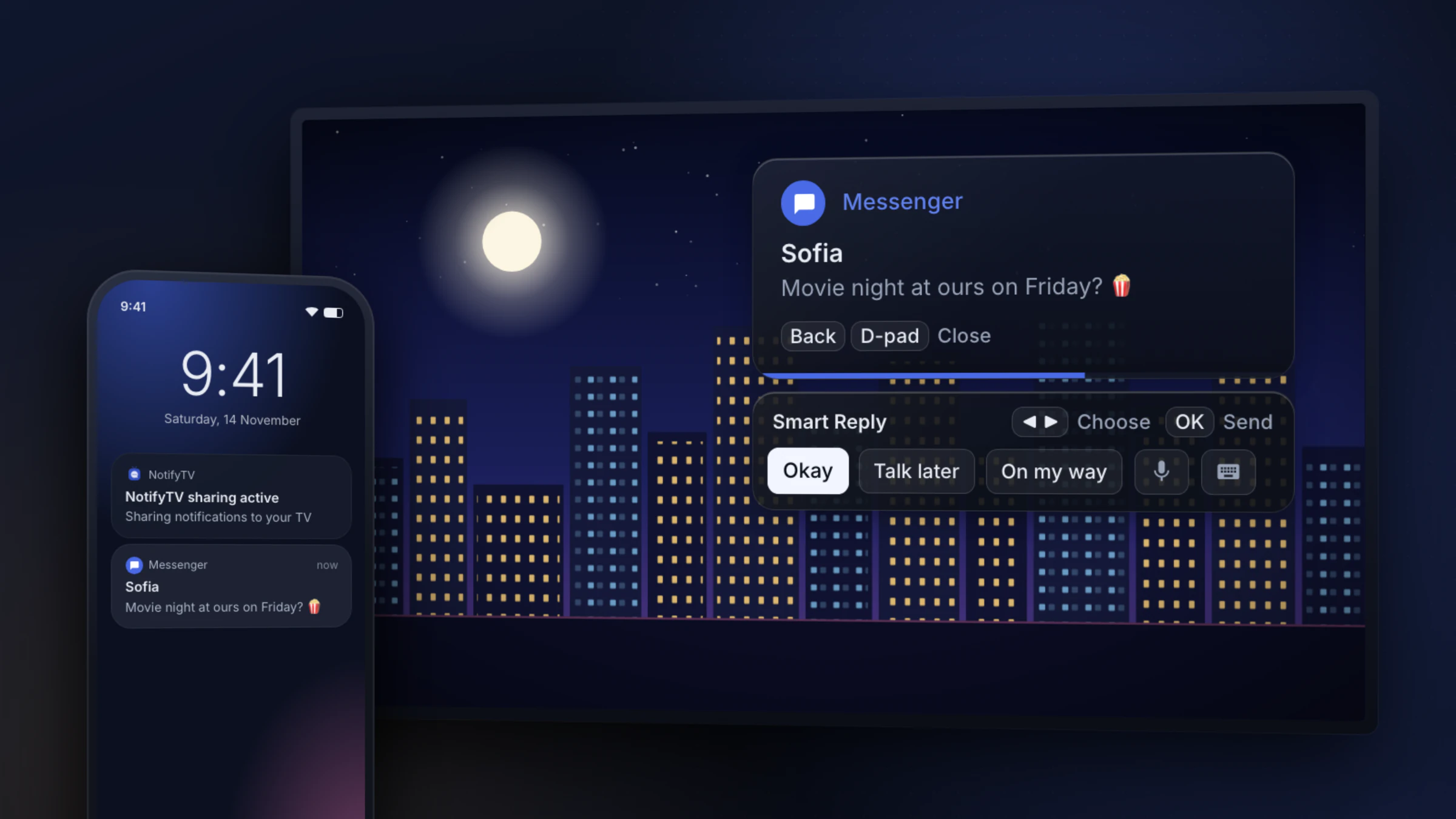
There’s no Messenger app for Android TV or Google TV. Google Play offers Meta’s Messenger for phones and tablets, not for TVs (checked on 24 November 2026). What works is your phone’s Messenger notifications on the TV: with NotifyTV, new messages and incoming calls pop up over what you’re watching, and since version 1.4 you can reply from the remote with Smart Reply. The reply is sent by Messenger on your phone. Calls are still answered on the phone.
Is there a Messenger app for Android TV or Google TV?
No. Meta’s Messenger app is made for phones and tablets, and its Google Play listing has no TV version (checked on 24 November 2026). You can check your own TV in a minute: open Google Play on the TV and search for Messenger. The TV’s Play Store only shows apps made for TVs, so if Meta’s Messenger isn’t there, the TV can’t install it. If an app called Messenger does show up, look at who made it: Meta’s apps are published by Meta Platforms, Inc.
Source: Messenger on Google Play
Can I install the Messenger APK on an Android TV box?
You can sideload the phone app’s APK file, but we don’t recommend it. Messenger is made for a touch screen, not a TV remote. Most TVs and boxes have no camera, so video calls are out. A sideloaded copy won’t update from the TV’s Play Store, and APK download sites are a security risk: you can’t tell what’s been changed in the file. If your box has Google Play, there’s a simpler way to keep up with Messenger on it, below.
Can you use Messenger in a TV’s web browser?
Meta now sends people on a computer to Facebook’s website. The Messenger desktop apps for Windows and Mac closed on 15 December 2025, and Meta said messenger.com would stop working for messaging in April 2026, sending them to facebook.com/messages instead (checked on 24 November 2026). On a TV, that means opening facebook.com/messages in a browser and signing in, which is a poor fit:
- No browser to start with: Google TV and most Android TVs don’t come with one, so you’d install a browser from Google Play first.
- Typing with a remote: Facebook’s website is made for a mouse and keyboard or a touch screen.
- A Facebook account: without one, Meta says you can carry on your chats only in the Messenger mobile app.
- Your PIN: Meta may ask for your Messenger PIN to restore your chat history on a new device.
- No film: while the chat is on screen, you’re not watching anything.
Sources: TechCrunch, 15 December 2025 · TechCrunch, 19 February 2026
Can you make Messenger video calls on a TV?
Not with an app on the TV. There’s no Messenger app for Android TV or Google TV, we couldn’t find one for Samsung or LG TVs, and most TVs have no camera. Meta’s Portal TV, a camera box that brought Messenger video calls to the TV, ended with the rest of Meta’s Portal devices in 2022. So Messenger calls stay on your phone. What the TV can do is tell you who’s calling, so a call doesn’t get lost under a loud film: see Messenger calls on the TV below.
Source: Engadget, 12 November 2022
What works: Messenger messages on your TV with NotifyTV
NotifyTV is a pair of free, ad-supported apps, one for your Android phone and one for the TV. When Messenger shows a notification on your phone, the phone app sends it to the TV over your home Wi-Fi, and it appears as a small popup over whatever is playing, then goes away after a few seconds. Nothing is mirrored, and your chats stay in Messenger.
- Messages show who sent them and what they said. A long message shows its first lines; press OK on the remote to read the rest.
- Group chats show what Messenger’s notification on your phone shows.
- Several at once stack, up to 4 on screen; older ones shrink to a single line.
Reply to Messenger from the remote with Smart Reply
Since version 1.4, a Smart Reply strip waits under message popups, Messenger’s included. You don’t need the phone or a keyboard:
- 1
Press Down on the remote
When the Messenger message pops up, Down takes you to the strip under it. The popup stays on screen while you choose.
- 2
Pick a reply
Use ◀ ▶ to choose one of the quick replies: “Okay”, “Talk later” and “On my way”. Or choose the keyboard to type with the TV’s on-screen keyboard, or the microphone to say it into the remote on TVs that support speech recognition.
- 3
Press OK to send
Your phone sends it through Messenger’s own notification reply, so your friend sees an ordinary reply from you in the same chat. The TV shows “Sent ✓”.
When Smart Reply shows for Messenger
- Messenger’s notification needs a reply. The TV uses the reply built into Messenger’s notification on your phone. Pull down your phone’s notifications: if you can type a reply right in a Messenger notification, the TV can reply too. If you can’t, the TV shows the message without the strip. Some apps also put Mark as read in their notification, and then it’s on the strip too.
- Both apps need version 1.4. Update NotifyTV on the phone and on the TV from Google Play.
- You decide who can reply. Anyone holding the remote could answer as you. Turn off “Allow Smart Reply from TV” in the phone app, or Smart Reply in the TV’s Settings, and nobody can.
- Your own quick replies. Change the three quick replies in the TV’s Settings, or from the admin phone’s TV settings.
Smart Reply works the same way for texts, WhatsApp and other messaging apps: the guide to replying from your TV covers it in full.
Messenger calls on the TV
When a Messenger voice or video call rings on your phone, the TV shows who’s calling, so you can reach for the phone in time. Answer or decline Messenger calls on the phone; on the TV, Dismiss closes the popup. Decline on the remote is for regular phone (SIM) calls. Calls don’t get Smart Reply. More about call popups in the caller ID guide.
How to set it up
- 1
Install NotifyTV on your TV and phone
Both apps are free on Google Play and supported by ads. The TV needs Google TV or Android TV 8.0+ with Google Play; the phone needs Android 8.0 or newer. iPhones aren’t supported.
- 2
Pair them on the same Wi-Fi
Scan the QR code on the TV in the phone app, let the phone find the TV on your Wi-Fi, or type the TV’s address.
- 3
Check Messenger is switched on
Open Select apps in the phone app. If Messenger was on your phone when you first opened NotifyTV, it’s already on, and so is Facebook, which sends Facebook’s own notifications; switch Facebook off if you only want Messenger. Installed Messenger later? NotifyTV asks with a “New app installed” notification: tap Forward, or turn it on here.
- 4
Send yourself a message
Ask a friend to message you on Messenger, or tap Test notification in the phone app, and watch it appear on the TV.
Nothing showing? Check that the Messenger chat isn’t muted (muted chats don’t notify your phone, so nothing reaches the TV), then see the troubleshooting section of the setup guide.
Samsung, LG and other smart TVs
NotifyTV runs on TVs and streaming devices with Google TV or Android TV and Google Play, such as Sony, TCL and Hisense TVs with Google TV, the Google TV Streamer, Chromecast with Google TV and NVIDIA Shield. Samsung TVs run Tizen and LG TVs run webOS. Neither can install Google Play apps, so NotifyTV doesn’t run on them, and we couldn’t find a Messenger app from Meta for them either (checked on 24 November 2026). Your options:
- Plug in a Google TV streaming device and watch through it. With an Android phone, NotifyTV shows Messenger messages and calls there.
- Use the TV’s own web browser with facebook.com/messages, with the same downsides as above.
Which TVs can show your phone’s calls and messages at all, platform by platform, is in which TVs show phone calls. To check a specific TV or box, use the compatibility page.
What NotifyTV can’t do with Messenger
- Show your chat history or open a conversation on the TV.
- Take Messenger voice or video calls on the TV.
- Send photos, stickers or voice messages: Smart Reply sends text.
- Run with an iPhone, or on Samsung, LG, Roku or Fire TV.
NotifyTV isn’t made by or affiliated with Meta or Facebook. It forwards the notifications your phone already receives.
Frequently asked questions
Is there a Messenger app for Android TV or Google TV?
No. Google Play offers Meta’s Messenger for phones and tablets, not for TVs (checked on 24 November 2026), so you can’t install it from the TV’s Play Store. To check your own TV, search for Messenger in Google Play on the TV: it only lists apps made for TVs.
Can I install the Messenger APK on my Android TV box?
You can sideload the phone app’s file, but we don’t recommend it. Messenger is made for a touch screen rather than a TV remote, most TVs and boxes have no camera for video calls, a sideloaded copy doesn’t update from the TV’s Play Store, and APK download sites are a security risk. If your box has Google Play, NotifyTV can show your phone’s Messenger messages on it instead.
Can I use Messenger in a TV’s web browser?
Only through Facebook’s website, and it’s a poor fit. Meta closed the Messenger desktop apps in December 2025 and said messenger.com would stop working for messaging in April 2026, sending people to facebook.com/messages instead (checked on 24 November 2026). On a TV you need a browser app, a Facebook account and a lot of typing with the remote, and you stop watching while the chat is open.
Can you make Messenger video calls on a TV?
Not with an app on the TV. There’s no Messenger app for Android TV or Google TV, we couldn’t find one for Samsung or LG TVs, and most TVs have no camera. Meta’s Portal TV, a camera box that brought Messenger video calls to the TV, ended with the rest of Meta’s Portal devices in 2022. Take Messenger calls on your phone; with NotifyTV the TV shows who’s calling.
Can I reply to Messenger messages from my TV?
Yes, with Smart Reply, in version 1.4. When a Messenger message pops up, press Down on the remote, pick a quick reply such as “Okay”, type one with the TV’s on-screen keyboard or say it into the remote on TVs with speech recognition, and press OK. Your phone sends it through Messenger’s own notification reply. Both apps need version 1.4, and Messenger’s notification on your phone has to have a reply.
Can I decline a Messenger call from the TV?
Answer or decline Messenger calls on your phone. The TV shows who’s calling, and Dismiss closes the popup; Decline on the remote is for regular phone (SIM) calls.
Can I get Facebook Messenger on a Samsung or LG smart TV?
We couldn’t find a Messenger app from Meta for Samsung (Tizen) or LG (webOS) TVs (checked on 24 November 2026), and NotifyTV doesn’t run on them because they can’t install Google Play apps. With an Android phone, plug a Google TV streaming device into the TV and NotifyTV shows Messenger messages and calls while you watch through it.
Why don’t my Messenger messages show on the TV?
NotifyTV forwards the notifications your phone gets, so check three things: Messenger is switched on in Select apps in the phone app, Messenger is allowed to show notifications on the phone, and the chat isn’t muted in Messenger (muted chats don’t notify). The phone and the TV also need to be on the same Wi-Fi.