Doorbell Notifications on Android TV and Google TV
See Ring, Nest, Eufy and other doorbell alerts on your Android TV or Google TV. What Google TV does by itself, and how to get any doorbell’s alert on the TV.
By NotifyTV TeamPublished Updated 4 min read
The film is loud, the headphones are on, and the delivery driver is ringing the bell for the second time. Your phone did tell you, but it is face down on the sofa.
If your TV runs Android TV or Google TV, there are two ways to get doorbell alerts on the big screen: the one Google builds in for its own doorbells, and one that works with whatever doorbell app is on your phone. Here is what each does, and how to set them up.
What Google TV does on its own
Google has built doorbell alerts into Google TV for its Nest doorbells. When someone rings a Nest Doorbell, a Google TV Streamer can show a notification in the corner of the screen with a preview of who is there, and you can open the live view (9to5Google covered the launch). Nest cameras and doorbells can also stream their live view to Chromecast with Google TV.
That is a great fit if you have exactly that combination. Outside it, things get thin:
- Other doorbells (Ring, Eufy, Arlo, Wyze, Blink and the rest) are mostly left out. Google itself notes that its visitor announcements may not be available on third-party doorbells.
- Other TVs: Google has been bringing its smart-home features to more Google TV devices, but TVs and boxes on the older Android TV interface don’t have them.
- Fire TV has its own Ring features, but that is Amazon’s system, and a different TV platform.
Our guide to Google Home notifications on TV shows how to turn on Google TV’s doorbell alerts, and which Google Home alerts the TV doesn’t show by itself.
Any doorbell, through your phone
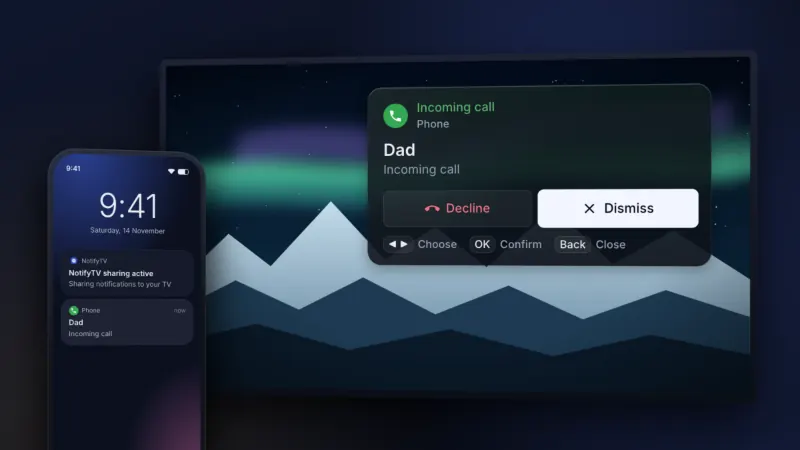
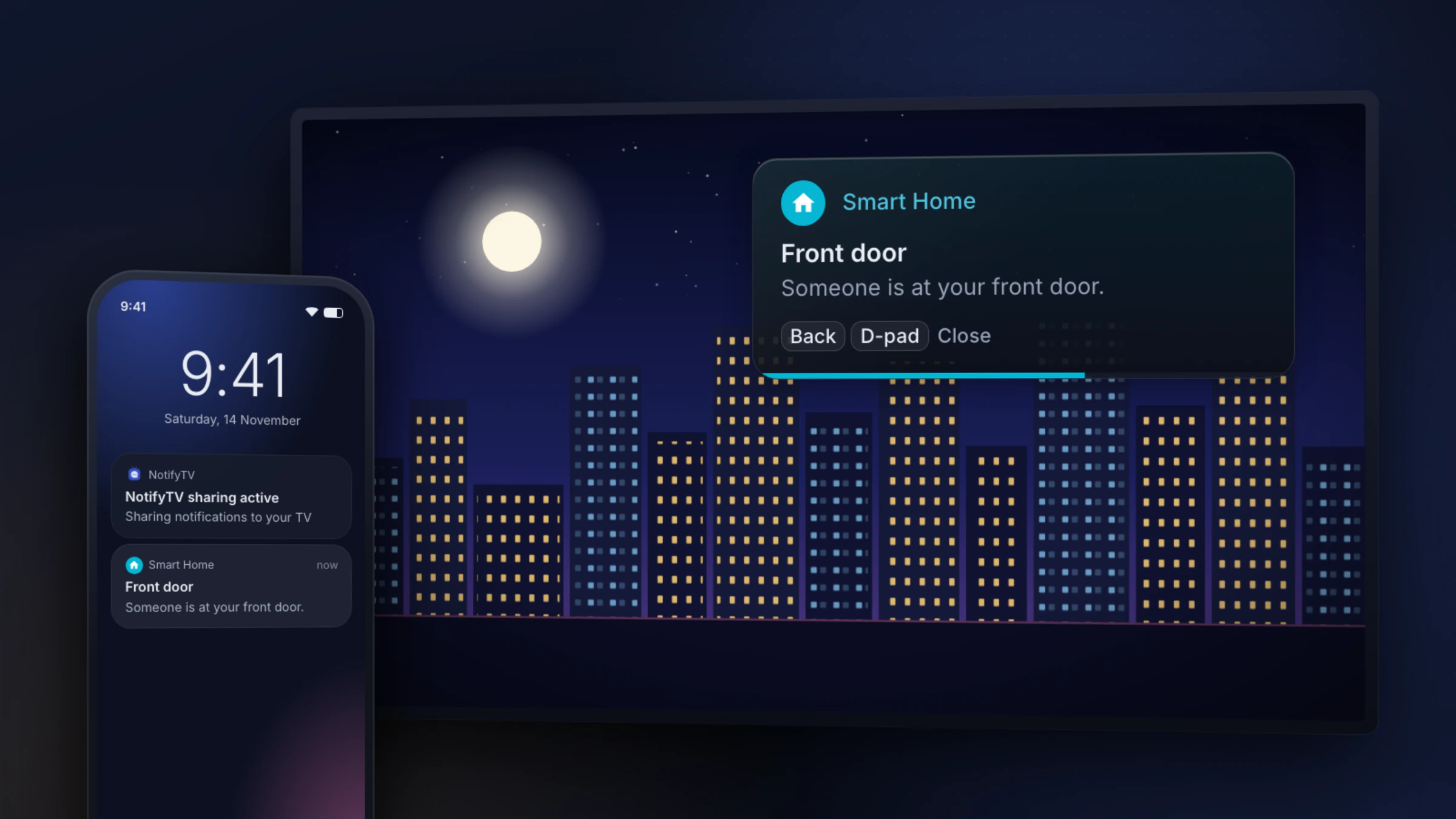
Every doorbell app already does one thing reliably: it puts a notification on your phone when someone rings or a camera spots movement. NotifyTV takes that notification and shows it on your TV as a small popup, over whatever you are watching. The phone sends it straight to the TV over your home Wi-Fi.
So it doesn’t matter which brand your doorbell is. If its app notifies your Android phone, the alert can reach the TV: Ring, Google Home or Nest, Eufy Security, Arlo, Wyze, Blink, or the Home Assistant companion app if you run your own smart home.
Ring or Blink doorbell linked to Alexa? Alexa on Google TV explains what Alexa can and can’t do with an Android TV or Google TV, and how its alerts reach the screen.
What you see on the TV
The popup shows the doorbell app and the alert’s words, for example “Front door: Someone is at your front door”. The exact text is whatever your doorbell app writes. It stays for a few seconds, then gets out of the way.
To be clear about the limits: NotifyTV shows the notification, not the camera. There is no video or snapshot on the TV, and you can’t talk to the visitor from it. The popup tells you to go to the door, or to pick up your phone and open the doorbell app.
How to set it up
- Install NotifyTV on the TV and on your Android phone. Both apps are free on Google Play (and supported by ads). The TV needs Android TV or Google TV with Google Play; the phone needs Android 8.0 or newer.
- Pair them. Open the phone app, scan the code on the TV or let the phone find the TV on your Wi-Fi. The setup guide walks through it.
- Turn on your doorbell app. Common messaging apps are switched on for you, but doorbell apps aren’t. In the phone app, open Select apps and switch on Ring, Google Home, Eufy Security or whichever app your doorbell uses.
- Ring the bell. Press your own doorbell (or ask someone to) and watch the TV.
Tips so you never miss the door
Check the doorbell app’s own notifications first. If the alert doesn’t appear on your phone, it can’t reach the TV. Make sure notifications are on for the doorbell app, and for the alert types you want (rings, motion, packages).
Mind the quiet modes. On the TV, calls only mode lets only phone calls through, so doorbell alerts don’t show while it is on. On the phone, if you turn on “Follow phone’s Do Not Disturb” in NotifyTV’s settings (it’s off by default), the TV gets only what your phone’s own Do Not Disturb lets through, so add your doorbell app to your phone’s Do Not Disturb exceptions.
One phone is enough. If everyone at home has the doorbell app and NotifyTV, each phone sends its own alert, so the TV may show the same ring more than once. Turn the doorbell app on in NotifyTV on one phone only.
Motion alerts can get busy. If your camera reports every passing car, the TV will show them all. Tune motion zones or alert types in the doorbell app, or switch on only the alerts you care about.
Doorbells, and everything else
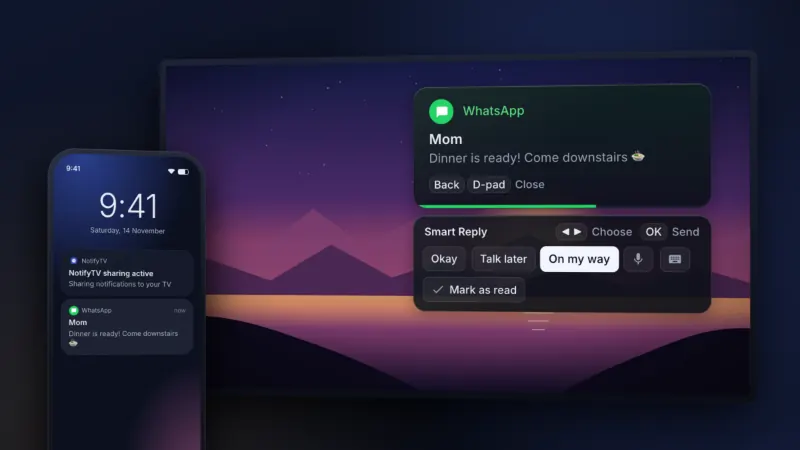
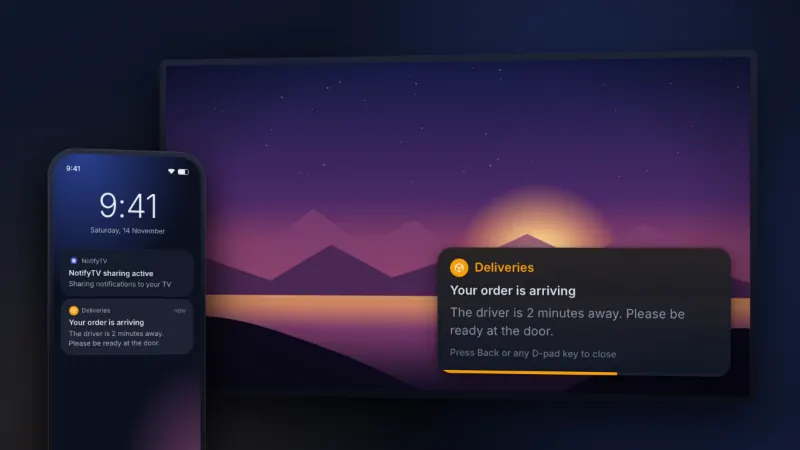
The same popup works for the rest of the house: a washing machine that has finished, a smart lock that opened, a delivery app saying the driver is two minutes away. And of course messages and calls, which is what most people use NotifyTV for. You can see who’s calling and even read and reply to text messages on the TV.
If you’d like to see how the popups look first, try the demo on the home page, or check that your TV is supported on the compatibility page.