NotifyTV 1.4: Reply to Messages From Your TV
NotifyTV 1.4 adds Smart Reply, so you can answer texts and chats with your TV remote, plus Recent, new privacy choices and an optional Do Not Disturb setting.
By NotifyTV TeamPublished Updated 4 min read
Until now, NotifyTV told you who was messaging you while you watched. With version 1.4 you can also answer, without getting up and without finding your phone.
Here’s what’s new in NotifyTV 1.4 for the phone app and the TV app.
Smart Reply: answer from the remote
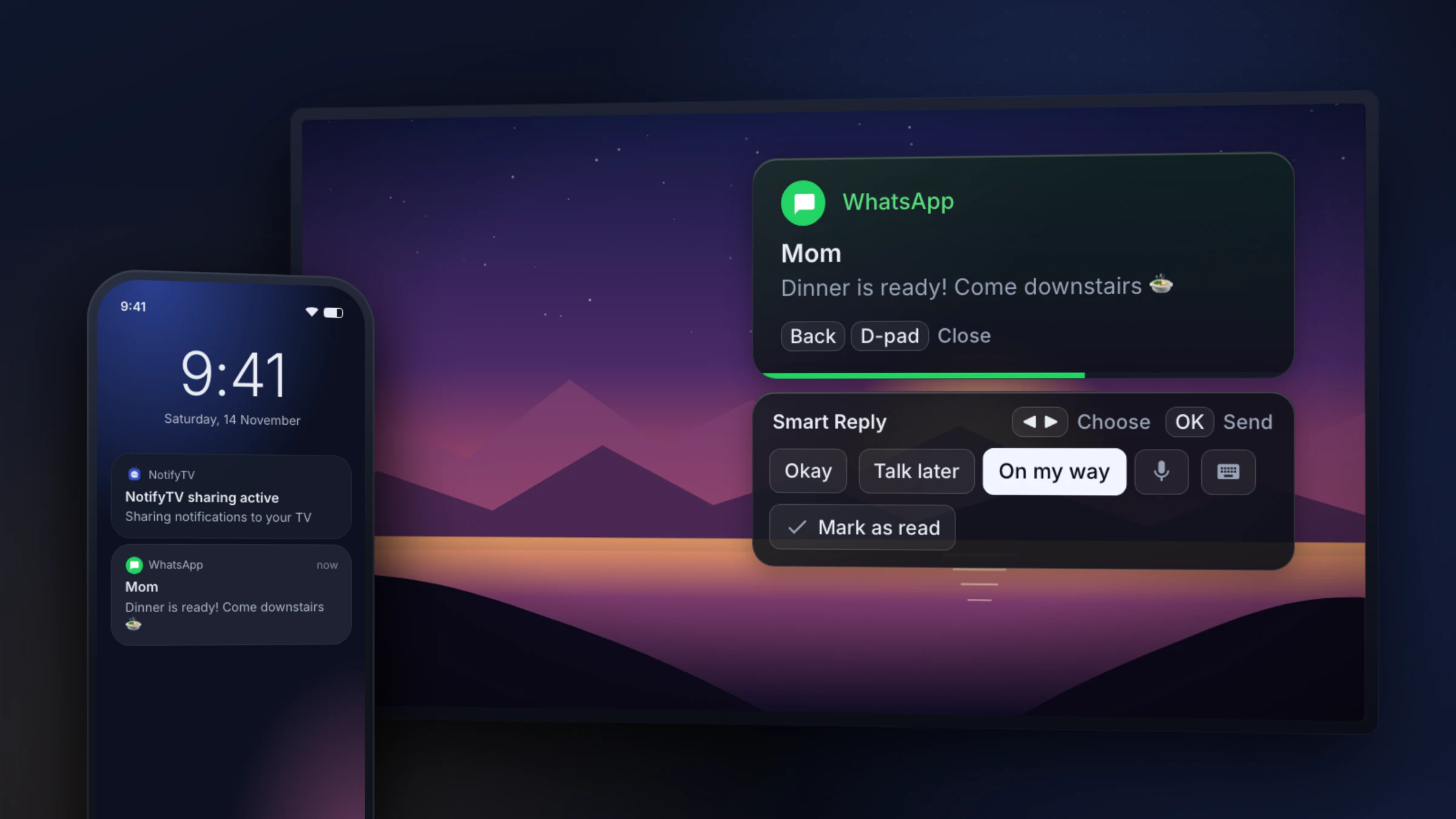
When a message pops up on the TV, press Down on the remote. A Smart Reply strip opens under the popup with three quick replies: “Okay”, “Talk later” and “On my way”. Choose one with ◀ ▶ and press OK. The popup waits while you choose, and the TV shows “Sent ✓” once your reply has gone.
Want to say more than that?
- Type it with the TV’s on-screen keyboard.
- Say it into the remote’s microphone, on TVs that support speech recognition.
- Mark as read, and the other actions the app puts in its notification, are on the strip too.
The reply is sent by your phone, through the messaging app’s own reply, just like replying from the notification on your phone. So it works with apps whose notifications have a reply box, like Google Messages, WhatsApp, Telegram, Messenger or Signal, and the other person sees a normal reply in the same chat.
You can change the quick replies in the TV’s Settings, or from the admin phone’s TV settings. If you’d rather nobody could reply from the remote, turn off Smart Reply on the TV, or “Allow Smart Reply from TV” on your phone.
There’s a full walkthrough in our new guide: how to see and reply to text messages on your TV.
Choose exactly what the TV shows
A TV is a shared screen, so the phone app’s Privacy settings now open with What your TV shows:
- Message: show the full message, or hide the text and show only who it’s from.
- Sender: show the name, hide phone numbers (they show as “Hidden number”), or hide the sender completely (“New message”, and “Incoming call” for calls).
A line under each choice says what the TV will show. Smart Reply keeps working whatever you pick, and messages that look like one-time codes still stay on the phone.
Recent: what reached your TV
The phone app’s new Recent screen lists the last 50 notifications NotifyTV caught and what happened to each: sent to the TV, hidden as a code, not sent because the app is turned off, or not sent because the TV couldn’t be reached. If you ever wonder why something didn’t show, this is the place to look. Recent stays on your phone.
Follow your phone’s Do Not Disturb (optional)
A new phone setting, Follow phone’s Do Not Disturb, is off by default. Turn it on and, while your phone is in Do Not Disturb, only what your phone itself lets through reaches the TV, such as calls from people you’ve allowed. In Silent mode, notifications and calls stay on the phone. Reminders you set in NotifyTV still show.
The phone app’s Home tells you about it, and suggests it when your phone is in Do Not Disturb or on Silent. You decide.
On the TV
- Stack messages: on by default, so several messages can show at once. Turn it off to see one message at a time; calls, alerts and reminders still show right away.
- Manage devices shows when each phone was last seen.
- Right-to-left messages, in Arabic or Hebrew, are laid out right to left.
- No more ad card among your popups. In 1.4, the popups over your film show only your notifications; banner ads stay inside the TV app’s own screens.
Smaller things that add up
- The phone app’s theme can follow your phone: System (the default), Dark or Light.
- One clear connection status on the phone’s Home, which also tells you when the TV is paused or can’t show popups.
- The phone reconnects sooner when the TV comes back, for example when you unlock your phone.
- A simpler setup: three steps on the phone, and the TV’s setup shows the Google Play badge under the code that installs the phone app.
- Call waiting fix: Decline from the TV now declines the new call instead of ending the one you’re on. It uses your phone’s own Decline button.
How to update
Both apps update from Google Play. On the phone, open Google Play, go to your apps and update NotifyTV. On the TV, open Google Play on the TV and update NotifyTV there (or wait for automatic updates).
Smart Reply needs version 1.4 of both apps. Older versions keep working with 1.4 in the meantime: an updated phone with an older TV (or the other way round) still sends and shows notifications as before.
The complete list is on the What’s new page, and every feature is explained on the features page. New to NotifyTV? Start with the setup guide.